 oks-ui
Omkar Sahu · 8 min read
Published · Updated · Last reviewed · by Omkar Sahu
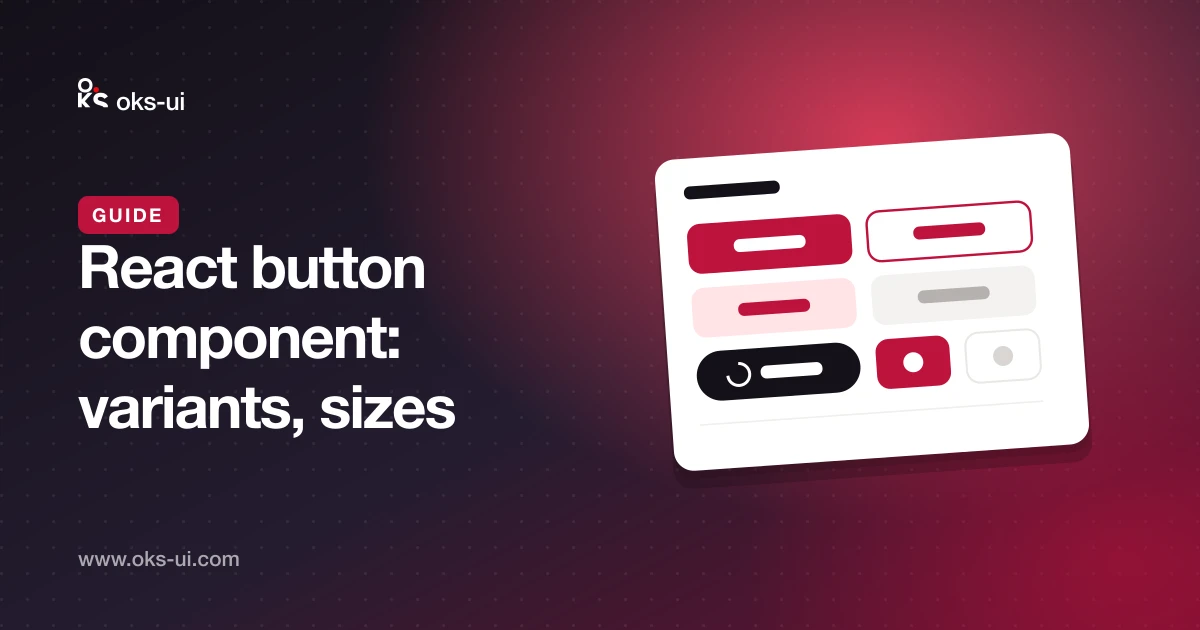
onPress and onClick runs both. The results are in a table near the end.Buttons are the most used component in any interface, and small inconsistencies show up everywhere: three slightly different reds, icon buttons nobody can read with a screen reader, a save button pressed twice. This guide covers everything oks-ui's Button does, with advice on when to use what and what I measured.
import "oks-ui/tokens.css"; // the design tokens every component stylesheet reads
import { Button, ButtonGroup } from "oks-ui/button";
import "oks-ui/button.css";
The first line loads the design tokens that every component stylesheet reads. Without it the components still render, but with fallback colours: in my test a danger button came out the same blue as a primary one. Every snippet on this page type-checks in strict TypeScript.
variant controls visual weight:
solid: filled. The main action on a screen, such as Save or Publish.soft: tinted background. Secondary actions that still need presence.bordered: an outline. A common choice for Cancel next to a solid primary.ghost: no background until hovered. Toolbars and dense rows.link: looks like a link, underlined. Inline actions such as "Forgot password?".<Button variant="solid" color="primary">Publish</Button>
<Button variant="bordered">Cancel</Button>
<Button variant="link" color="primary">Forgot password?</Button>A good rule: one solid button per area. If everything is loud, nothing is.
color takes default, primary, secondary, info, success, warning or danger. Use colour for meaning, not decoration: danger for delete, primary for the main path.
<Button color="danger" onPress={remove}>Delete</Button>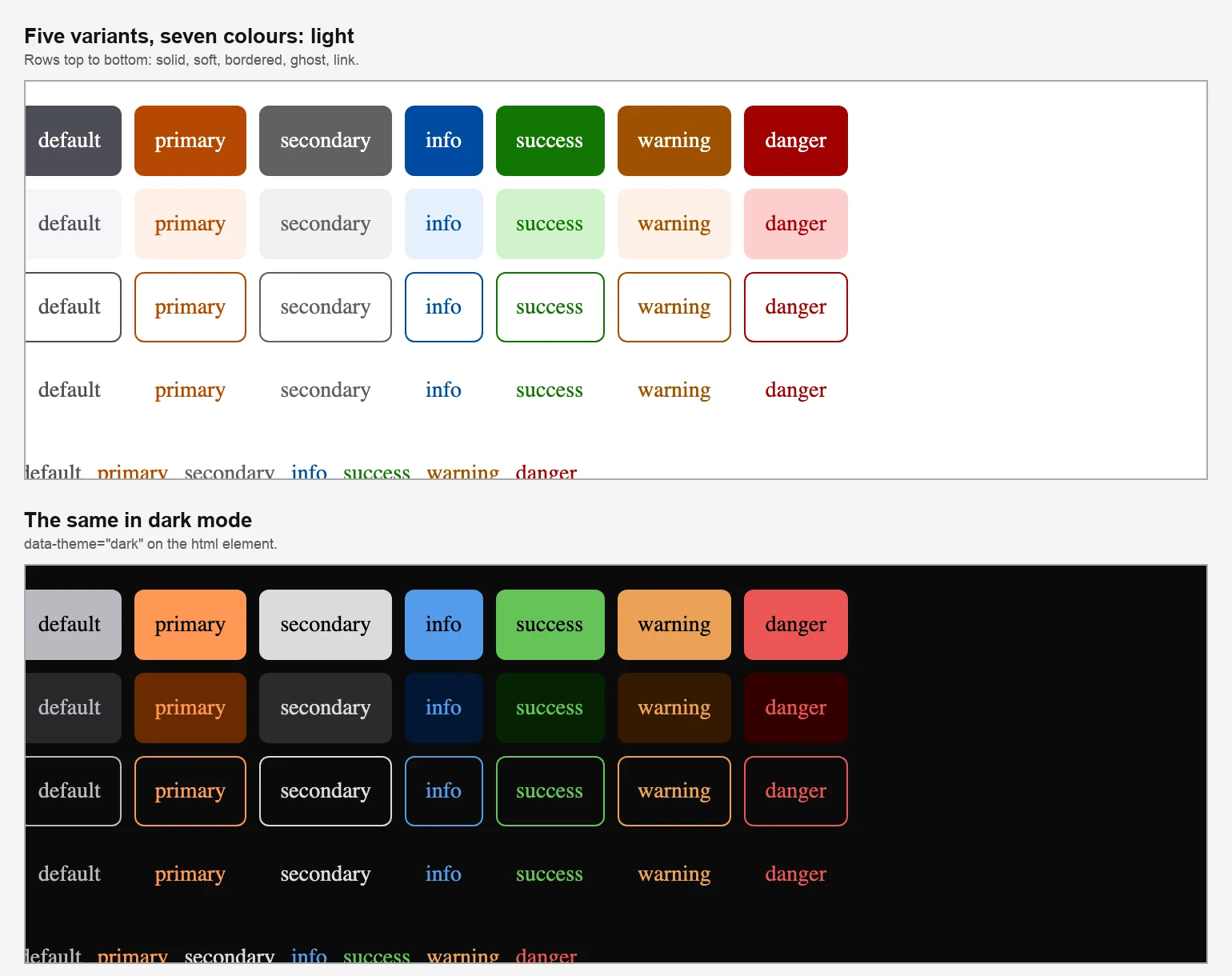
Five variants (solid, soft, bordered, ghost, link) in seven colours, in light and dark mode.
The first version said that since oks-ui 1.2 every colour's text meets the WCAG AA contrast ratio in light and dark mode. I measured it: five variants times seven colours times two themes, in rest, hover and pressed states, 210 combinations, in all three browsers. I took the text colour and the real background, including the translucent ones, flattened onto the page, and computed the ratio.
bordered or solid for them.size takes xs, xs-sm, sm, md (default), lg and xl. Use lg for the main call to action on a landing page and sm inside tables and toolbars. The heights I measured were 32, 36, 38, 44, 48 and 52 pixels. Even the smallest is 32 pixels tall, which clears the 24 pixel minimum target size in WCAG 2.2.
radius takes none, xs, xs-sm, sm, md, lg and full (pill), measured at 0, 1, 1.5, 2, 6 and 8 pixels, then fully round. fullWidth stretches the button across its container, which is useful on phones and in narrow forms. A full-width button in a 400 pixel container came out exactly 400 pixels wide.
Button calls onPress for mouse, touch and keyboard. A plain onClick works too.
<Button color="primary" onPress={() => save()}>Save</Button>I clicked with a mouse, pressed Enter and Space, and tapped with a touch screen, and onPress ran once each time. onClick behaved the same. The catch: if you give a button both, both run, onPress first and then onClick, so your handler would run twice. Pick one. I would pick onPress.
Set isLoading while an action is running. The button shows a spinner, sets aria-busy="true" for assistive technology, and ignores further clicks, so a slow save cannot be sent twice.
<Button color="primary" isLoading={saving} onPress={save}>
  Save changes
</Button>
I clicked it twice with the mouse and pressed Enter on it, and the handler was not called at all. The button stays in the tab order, which is what you want: a keyboard user's focus does not jump away while the save runs. spinnerPlacement="end" moves the spinner after the label; the order in the page went from spinner then label to label then spinner.
isDisabled greys the button out and blocks clicks. It also sets the real disabled attribute, which has a consequence the first version did not mention: the button cannot be focused. I tried, and calling focus() on it left focus where it was. A keyboard or screen reader user will skip over it and never learn it is there. Disabled buttons also give no reason why they are disabled, so prefer leaving the button enabled and explaining the problem when it is pressed, for example with form validation messages. When you do disable, add a nearby hint in text.
startContent and endContent place an icon before or after the label:
<Button startContent={<PlusIcon />} color="primary">New post</Button>
<Button endContent={<ArrowRightIcon />} variant="bordered">Next</Button>
The icon came before the label for startContent and after it for endContent. Give decorative icons aria-hidden="true", as mine had.
For a button with only an icon, set isIconOnly and always give it an aria-label. The first version said a screen reader "just says button" without one, and that oks-ui warns in development if the label is missing. Both are nearly right:
aria-label, the button's accessible name is literally "Button". It is not empty, so a quick check for unnamed buttons will not catch it. A screen reader says "Button" and nothing about what it does.aria-label is required when isIconOnly is true." But it appeared in a production build as well as in development, in all three browsers, so it is not stripped from your shipped code.A tooltip shows the same text on hover. It also appeared when I moved focus onto the button with the keyboard, and the button was linked to it with aria-describedby:
<Button isIconOnly variant="ghost" aria-label="Delete row" tooltip="Delete row">
  <TrashIcon />
</Button>Navigation belongs in a link, even when it looks like a button. Pass href, or use as to render your router's link component:
<Button href="/pricing" color="primary">See pricing</Button>

import Link from "next/link";
<Button as={Link} href="/posts/new" color="primary">New post</Button>
With href, the button rendered as an <a>. With as, it rendered my own link component and passed the href to it; I used a small stand-in component for the test, not Next's Link. A link to another site with target="_blank" automatically got rel="noopener noreferrer". If you pass your own rel, though, it replaces that default rather than adding to it: with rel="author" the attribute was just "author". Include noopener noreferrer yourself in that case.
A link that looks like a button behaves like a link. Enter activates it, and Space does nothing: I pressed Space on a focused link-button and the page did not move. Keyboard users who expect button behaviour may be surprised.
ButtonGroup joins related buttons into one control and applies shared props like variant, size and color to all of them:
<ButtonGroup variant="bordered" size="sm">
  <Button>Day</Button>
  <Button>Week</Button>
  <Button>Month</Button>
</ButtonGroup>
The group has role="group", all three buttons received bordered and sm, and they were drawn as one control with rounded outer corners only. A button's own variant wins over the group's: in a solid group, a child with variant="bordered" stayed bordered. When the group represents a single choice, a segmented control is usually clearer, because it shows which option is selected; a button group does not mark a selection by itself.
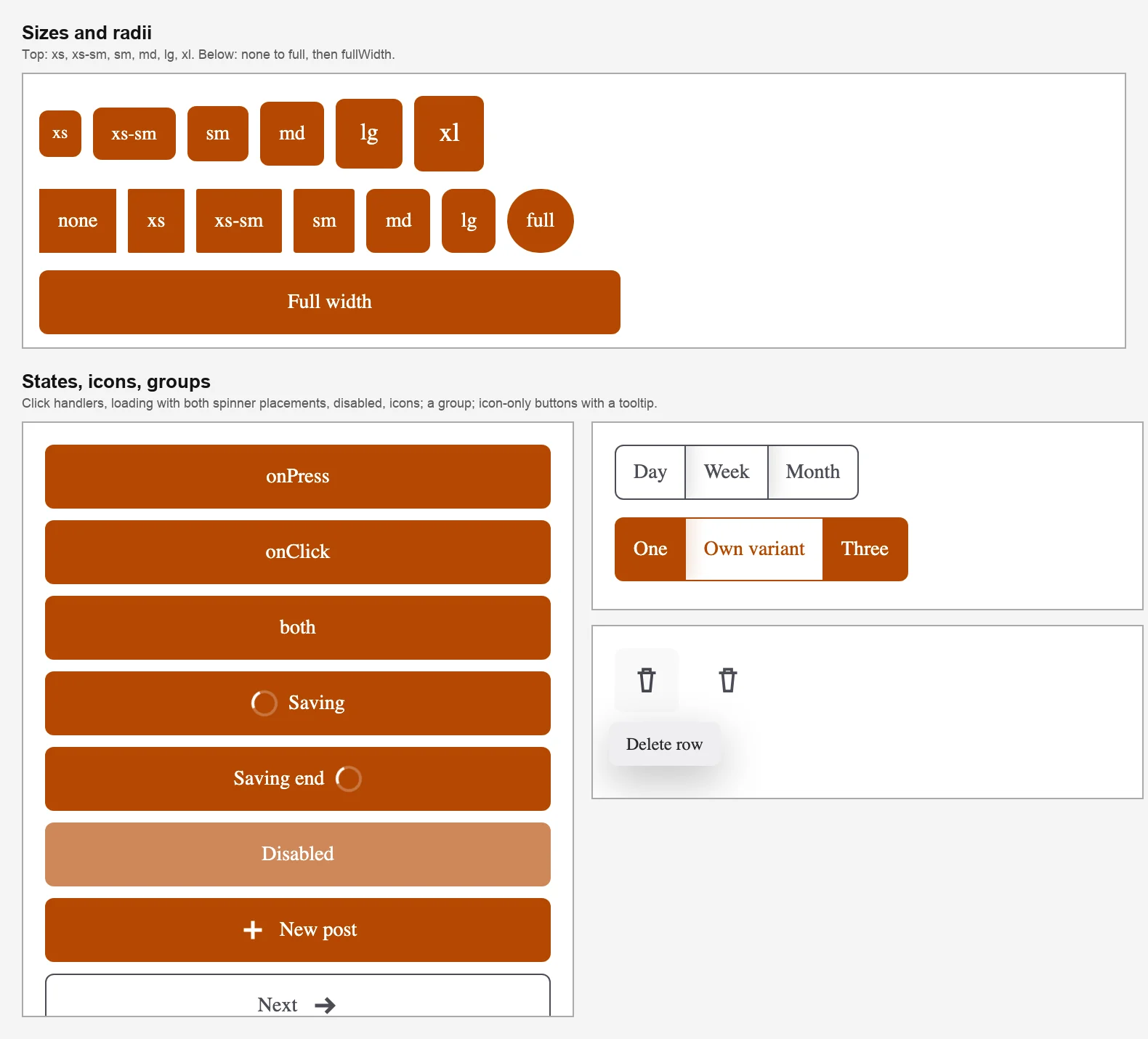
Sizes, radii, states, icons, a group and icon-only buttons.
Tabbing to a button showed a 2 pixel solid outline, offset by 2 pixels, in the button's own colour, for all five variants in light and dark mode.
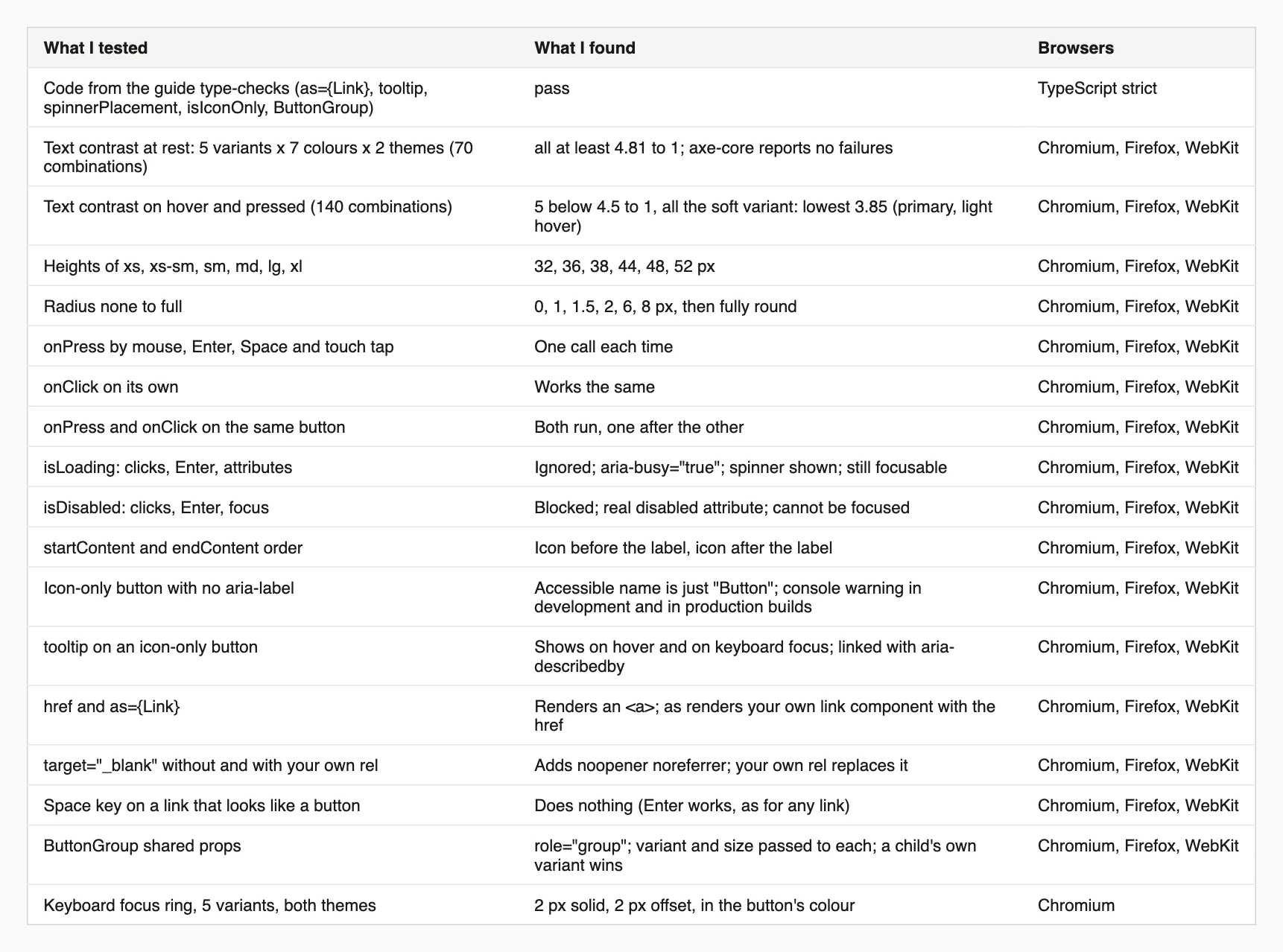
What I measured.
This script lists three problems that are easy to miss in review: buttons whose name is empty or just "Button", disabled buttons that keyboard users cannot reach, and links that open a new tab without noopener. Install playwright first.
// npm i -D playwright
// node check-buttons.mjs http://localhost:3000/some-page
import { chromium } from "playwright";

const url = process.argv[2];
const browser = await chromium.launch();
const page = await browser.newPage();
await page.goto(url);
await page.waitForTimeout(500);

const report = await page.evaluate(() => {
  const name = (el) => (el.getAttribute("aria-label") || el.getAttribute("aria-labelledby") && document.getElementById(el.getAttribute("aria-labelledby"))?.textContent || el.textContent || el.getAttribute("title") || "").trim();
  const describe = (el) => `<${el.tagName.toLowerCase()}${el.id ? ` id="${el.id}"` : ""}${el.className && typeof el.className === "string" ? ` class="${el.className.split(" ")[0]}"` : ""}>`;
  const buttons = [...document.querySelectorAll("button, [role=button]")];
  return {
    unnamed: buttons.filter((b) => !name(b)).map(describe),
    fallbackNamed: buttons.filter((b) => name(b) === "Button").map(describe),
    disabled: buttons.filter((b) => b.disabled).map((b) => `${describe(b)} "${name(b)}"`),
    blankWithoutRel: [...document.querySelectorAll('a[target="_blank"]')].filter((a) => !/noopener/.test(a.rel)).map((a) => `${describe(a)} rel="${a.getAttribute("rel") ?? ""}"`),
  };
});

const show = (title, list) => console.log(`${title}: ${list.length ? "\n  " + list.join("\n  ") : "none"}`);
show("Buttons with no accessible name", report.unnamed);
show("Buttons whose name is just \"Button\" (probably a missing aria-label)", report.fallbackNamed);
show("Disabled buttons (not focusable)", report.disabled);
show("target=_blank links without noopener", report.blankWithoutRel);
await browser.close();
On my test pages it flagged the unlabelled icon button, the disabled button, and the link with rel="author".
Try every prop live on the Button component page.
type="submit" behaviour, were not tested here; the login form post covers the submit case.as={Link} used a stand-in component. I did not run it with Next.js's own Link.I'm a front-end engineer based in Hyderabad, India, with more than 17 years of professional experience. I spent 12 years as a senior front-end developer, designing and building websites, and I have worked as a full-stack developer since 2022. I created oks-ui, a React component library with no runtime dependencies, and I write and maintain this site.