 oks-ui
Omkar Sahu · 9 min read
Published · Updated · Last reviewed · by Omkar Sahu

Reports, bookings and analytics all need the same control: pick a start date and an end date. Most users do not want to click through a calendar for "last month", so a good range picker also offers presets. This tutorial builds one with oks-ui's FormFieldSet of type datepicker.
import "oks-ui/tokens.css"; // the design tokens every component stylesheet reads
import { FormFieldSet } from "oks-ui/form-field-set";
import "oks-ui/form-field-set.css";
The first line loads the design tokens that every component stylesheet reads. Without it the components still render, but with fallback colours: in my test a danger button came out the same blue as a primary one.
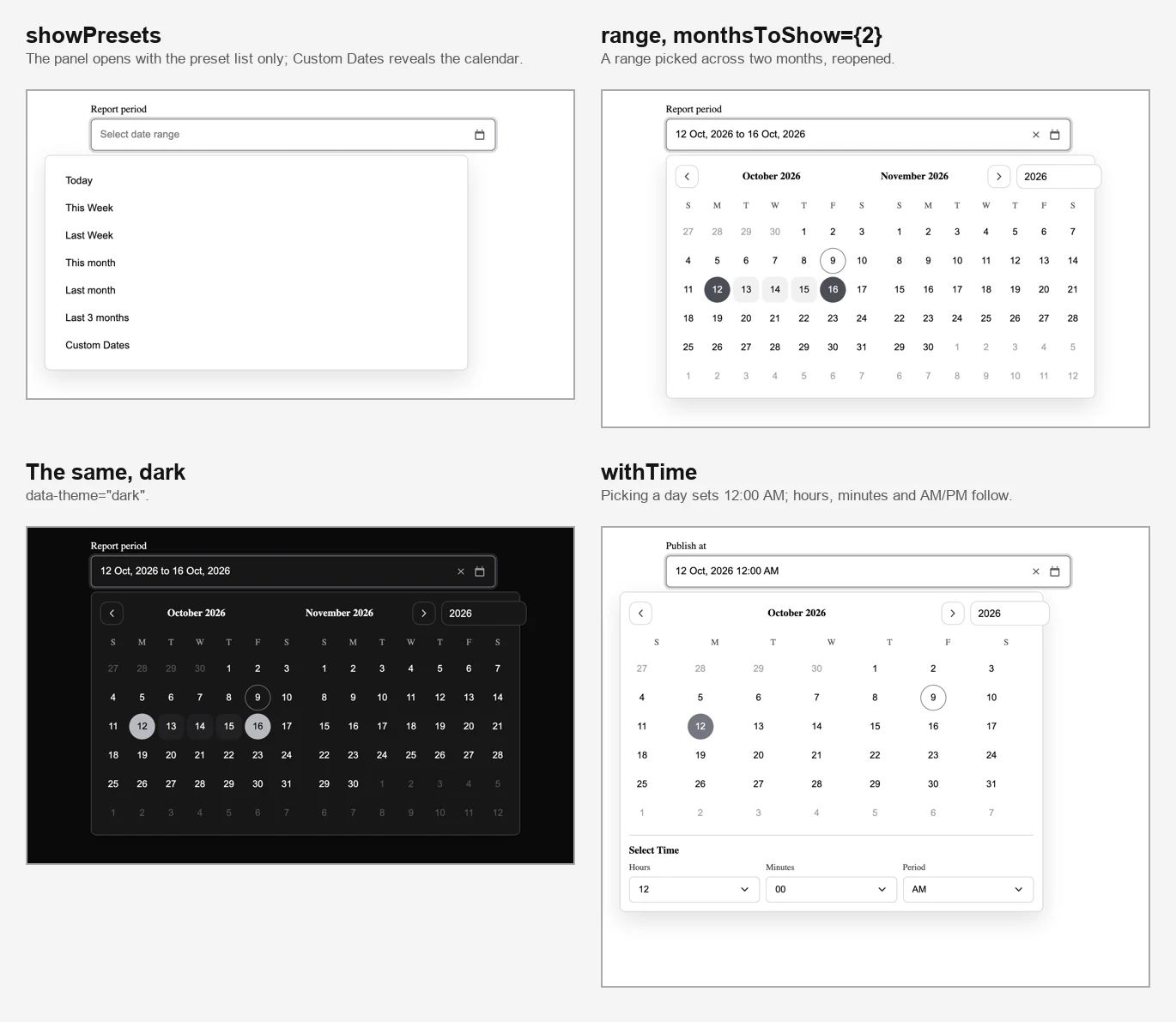
The picker in four states.
With type="datepicker", the value is a string in YYYY-MM-DD format:
const [date, setDate] = useState("");

<FormFieldSet
  type="datepicker"
  name="dueDate"
  label="Due date"
  value={date}
  onChange={(v) => setDate(String(v ?? ""))}
/>
All the code on this page type-checks. Picking 15 October gave the value "2026-10-15", and the field showed "15 Oct, 2026".
Add range and the value becomes an object with a start and an end:
type Range = { start: string; end: string };
const [period, setPeriod] = useState<Range>({ start: "", end: "" });

<FormFieldSet
  type="datepicker"
  name="period"
  label="Report period"
  range
  monthsToShow={2}
  value={period}
  onChange={(v) => setPeriod(v as Range)}
/>
monthsToShow={2} puts two months side by side, which makes ranges across a month boundary much easier to pick. The two calendars sat on the same row in all three browsers. Clicking 28 October and then 3 November gave {"start":"2026-10-28","end":"2026-11-03"}, shown as "28 Oct, 2026 to 3 Nov, 2026".
showPresets adds a list of common ranges. Choose which ones with presets:
<FormFieldSet
  type="datepicker"
  name="period"
  label="Report period"
  range
  showPresets
  presets={["today", "thisWeek", "lastWeek", "thisMonth", "lastMonth", "last3Months", "custom"]}
  value={period}
  onChange={(v) => setPeriod(v as Range)}
/>
Two corrections to the first version, which said the presets appear "next to the calendar". They do not: the panel opens with the preset list on its own, and the calendar only appears after you choose "Custom Dates". The second one matters more: custom is what gives people a way to pick any dates at all. I left it out of the list and the calendar never appeared, and the field is read-only, so the person could only choose from the presets. Keep custom in the list unless you really want presets only.
The available presets are today, yesterday, thisWeek, lastWeek, fortnight, thisMonth, lastMonth, last3Months, thisYear, lastYear and custom. The first version did not say what they mean, so I clicked each one with the clock set to Friday 9 October 2026. The answers were the same in all three browsers:
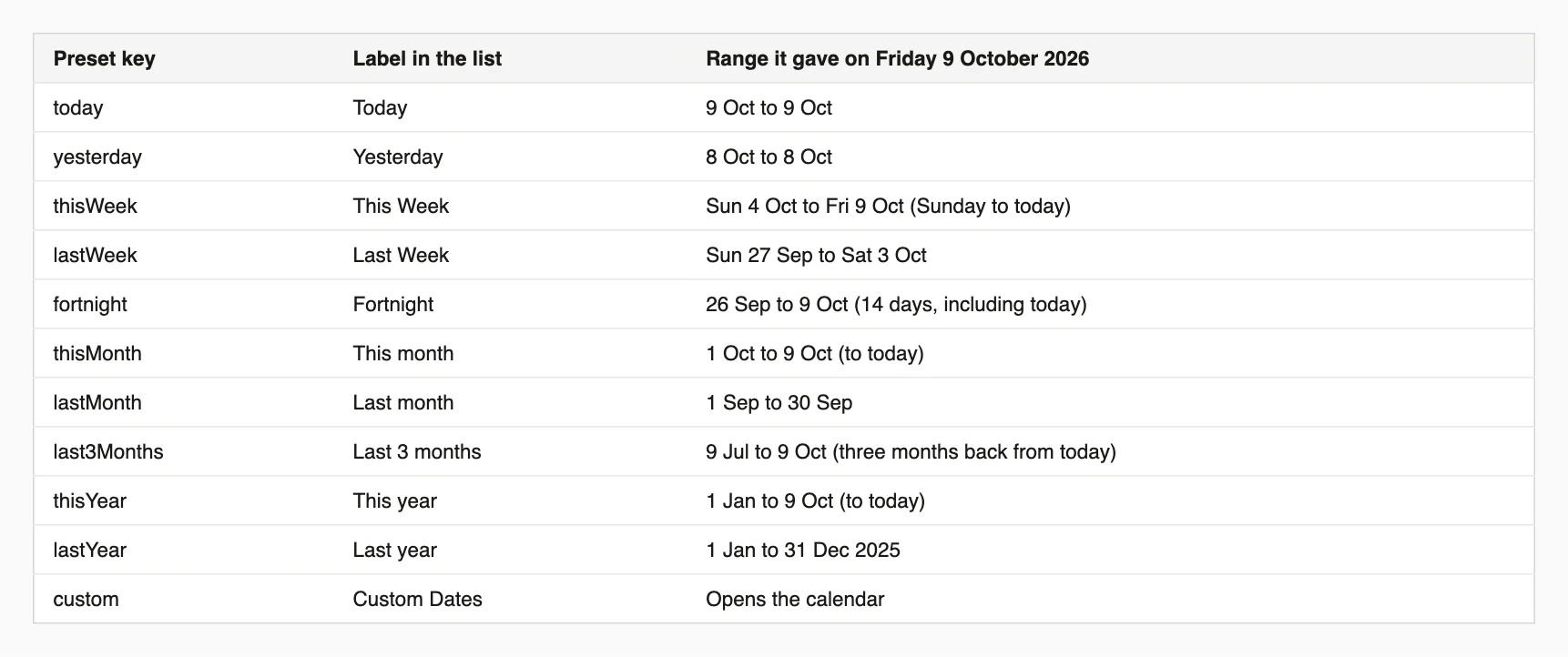
What each preset gave on Friday 9 October 2026.
Weeks start on Sunday, "This Week" runs from that Sunday to today and not to the end of the week, and "Last 3 months" is three months back from today rather than three whole calendar months. If your reports follow a Monday week, these presets will not match them. Presets are for ranges only: a single-date picker with showPresets showed no preset list.
Three props keep users away from impossible dates:
minDate / maxDate: nothing before or after. A report cannot cover the future; a booking cannot start in the past.blockedDates: individual dates that cannot be chosen, such as public holidays.const today = new Date();
<FormFieldSet
type="datepicker"
name="period"
label="Report period"
range
showPresets
maxDate={today}
blockedDates={["2026-12-25", "2027-01-01"]}
value={period}
onChange={(v) => setPeriod(v as Range)}
/>Dates accept either a Date object or a YYYY-MM-DD string. I tested a window from 5 to 25 October with 14 October blocked as a string and 20 October blocked as a Date. Days outside the window and both blocked days were disabled, and 5 and 25 October themselves were allowed. With maxDate={new Date()}, today could be chosen and tomorrow could not.
One surprise: a blocked day inside a range does not stop the range. I picked 10 October and then 18 October with the 14th blocked and got {"start":"2026-10-10","end":"2026-10-18"}. If a booking cannot span a blocked night, check that in your own code.
By default a range opens from a single field showing both dates. For forms where start and end are separate questions, such as "check-in" and "check-out", use two triggers:
<FormFieldSet type="datepicker" name="stay" label="Your stay" range rangeTrigger="dual" />This gave two fields, "Start" and "End". Choosing 12 October and then 16 October filled them as "12 Oct, 2026" and "16 Oct, 2026".
For schedules, add withTime. The value then includes the time as YYYY-MM-DDTHH:mm:
<FormFieldSet type="datepicker" name="publishAt" label="Publish at" withTime />The format is right, and the 12-hour controls convert properly: 9:30 AM gave T09:30, 9:30 PM gave T21:30, 12:00 AM gave T00:00 and 12:00 PM gave T12:00. When you pick a day without touching the time, it gives 12:00 AM, which is midnight, not the current time. That surprises people who expect "now". I got the same values with the browser's time zone set to UTC, Los Angeles and Auckland.
clearable adds a clear button, with onClear if you need to react to it. Clearing emptied both dates and called onClear once.displayFormat="iso" shows dates as 2026-09-29 to 2026-10-02 instead of the default 29 Sep, 2026 to 2 Oct, 2026.Form, drop value and onChange. The form collects the value under the field's name, and validation={{ rules: { required: true } }} blocks an empty field. I also tried submitting with only a start date picked: the form did not submit, so it does want both dates. A complete range arrived as {"period":{"start":"2026-10-12","end":"2026-10-16"}}.Because the value is plain strings in YYYY-MM-DD form, comparing dates is simple string comparison:
const inRange = orders.filter(
  (o) => (!period.start || o.date >= period.start) && (!period.end || o.date <= period.end),
);
With orders on 30 September and 1, 3 and 5 October, a range of 1 to 3 October kept the two inside it.
The classic date bug is a day that is off by one for people far from the server. I tested for it with the clock at 23:30 on 9 October in Los Angeles, which is already 10 October in Auckland. The "Today" preset gave 9 October in Los Angeles and 10 October in Auckland, each matching the local calendar. A stored range of 2026-09-29 to 2026-10-02 displayed as the same four days in both zones. Because the value is a string with no time zone, nothing shifts.
These are in oks-ui 1.4.1 itself, not in the tutorial code. I have noted them for the library; nothing is released or fixed yet.
role="gridcell" but no row between them and the grid. That was the same in light and dark mode and in all three browsers. Day buttons are named like "Mon Sep 28 2026".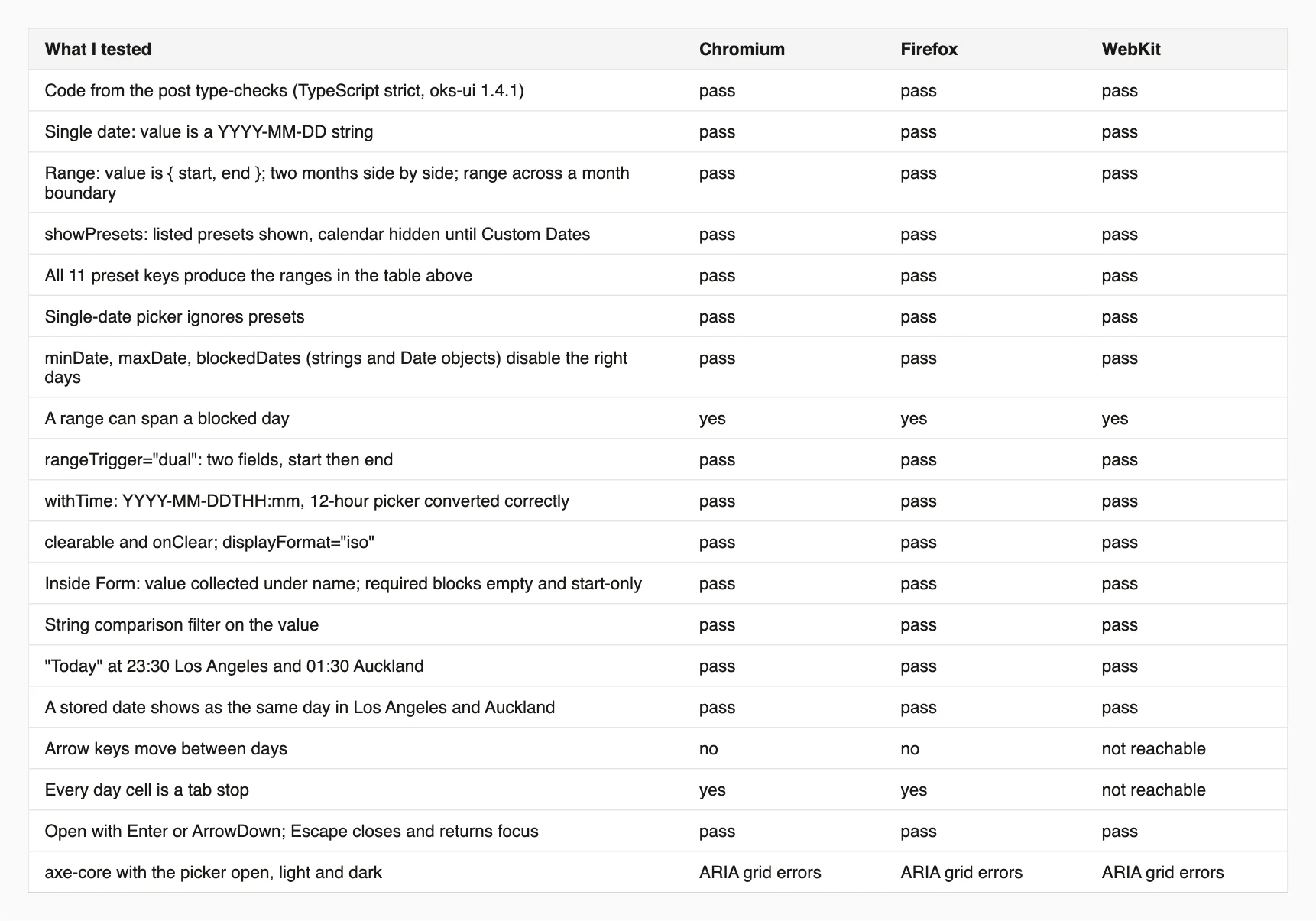
Every result, in all three browsers.
This script opens your page with the clock set to 23:30 in Los Angeles, which is already the next day elsewhere, clicks the "Today" preset in four time zones and prints what the field shows next to the real local date. Install playwright first.
// npm i -D playwright
// node today-timezone-check.mjs http://localhost:3000/reports "input[name=period]" "Today"
// Opens your picker with the clock set to a moment that is a different calendar day in different
// time zones, clicks the "Today" preset, and reads what the field shows.
import { chromium } from "playwright";

const [url, fieldSelector, presetName = "Today"] = process.argv.slice(2);
const instant = new Date("2026-10-09T23:30:00-07:00"); // 23:30 on 9 Oct in Los Angeles, already 10 Oct elsewhere

const browser = await chromium.launch();
for (const timezoneId of ["America/Los_Angeles", "UTC", "Asia/Kolkata", "Pacific/Auckland"]) {
  const context = await browser.newContext({ timezoneId, viewport: { width: 900, height: 800 } });
  const page = await context.newPage();
  await page.clock.install({ time: instant });
  await page.goto(url);
  await page.locator(fieldSelector).first().click();
  await page.getByRole("option", { name: presetName }).or(page.getByRole("button", { name: presetName })).first().click();
  await page.waitForTimeout(300);
  const shown = await page.locator(fieldSelector).first().inputValue();
  const expected = new Intl.DateTimeFormat("en-CA", { timeZone: timezoneId }).format(instant); // YYYY-MM-DD
  console.log(`${timezoneId.padEnd(20)} the field shows "${shown}"; the local date is ${expected}`);
  await context.close();
}
await browser.close();
On my picker it printed 9 October for Los Angeles and 10 October for the other three, matching each local date.
See the date picker component page for every option.
I'm a front-end engineer based in Hyderabad, India, with more than 17 years of professional experience. I spent 12 years as a senior front-end developer, designing and building websites, and I have worked as a full-stack developer since 2022. I created oks-ui, a React component library with no runtime dependencies, and I write and maintain this site.