 oks-ui
Omkar Sahu · 9 min read
Published · Updated · Last reviewed · by Omkar Sahu

oks-ui ships with a default look, and every colour, radius, space and shadow it renders is a plain CSS custom property rather than a baked-in design opinion. That means re-theming it is not a config file or a build step; it is a stylesheet. Here is the path from default to your brand, in the order that matters, with what I measured at each step.
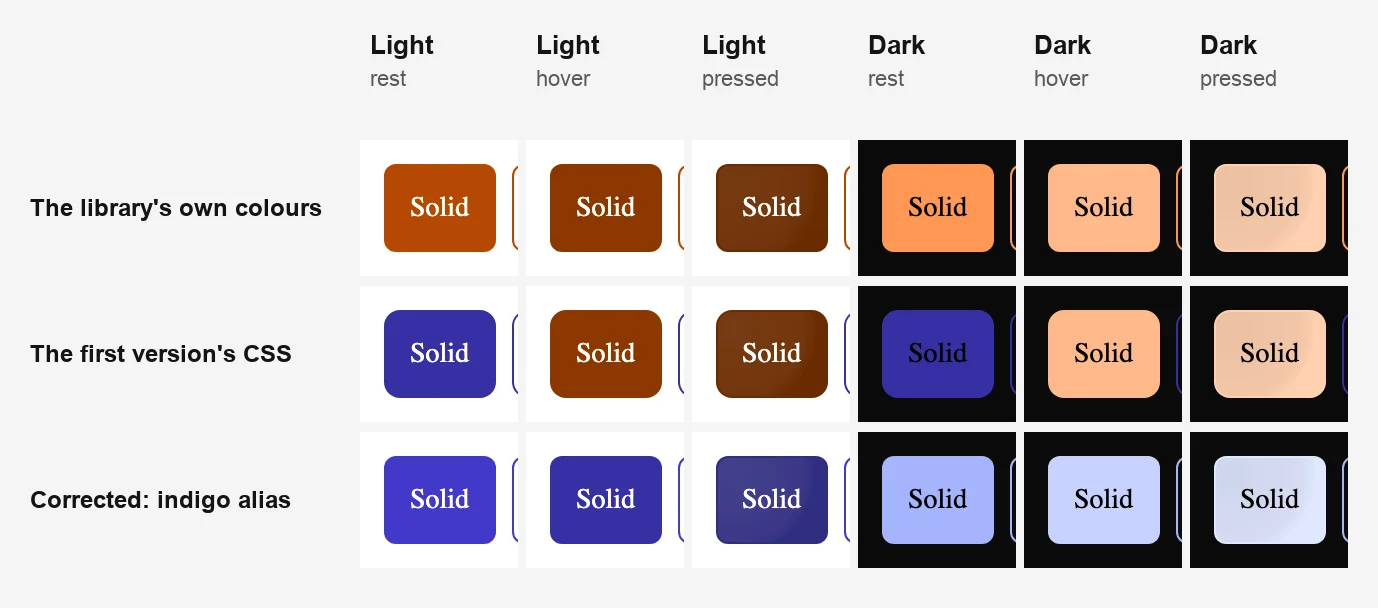
The solid button in six states, three ways. The middle row is the first version's CSS: indigo at rest, brown on hover, and black text on indigo in dark mode.
primary is the semantic role that colours your main buttons, links, tabs and focus rings. The first version said a solid button reads 500, then 600 for hover and 700 for pressed, and told you to override those. That is not what happens. I painted each of the eleven shades a different colour and watched which ones a solid button used:
700800900I also searched the stylesheets of twelve oks-ui 1.4.1 components (button, chip, tabs, progress, alert, form fields, card, modal, table, pagination, badge and stat) for the shades they read. Across them it is 50, 100, 500, 600, 700, 800 and 900. Nothing reads 200, 300, 400 or 950. So the brand colour of a solid button lives in 700, and 500 is mostly for the progress bar, focus rings and the table.
The first version's ramp set 50, 100, 500, 600 and 700. With it, the button went indigo at rest, but hover and pressed still used the default 800 and 900, so it turned brown when you pointed at it. That is the middle row in the picture above.
There are two ways to get it right.
oks-ui ships many palettes, including indigo, violet, teal, emerald, rose and more, and each one already has its own dark-mode mirror. If one of them is close enough to your brand, point the primary role at it in eleven lines:
:root {
  --oks-color-primary-50: var(--oks-palette-indigo-50);
  --oks-color-primary-100: var(--oks-palette-indigo-100);
  --oks-color-primary-200: var(--oks-palette-indigo-200);
  --oks-color-primary-300: var(--oks-palette-indigo-300);
  --oks-color-primary-400: var(--oks-palette-indigo-400);
  --oks-color-primary-500: var(--oks-palette-indigo-500);
  --oks-color-primary-600: var(--oks-palette-indigo-600);
  --oks-color-primary-700: var(--oks-palette-indigo-700);
  --oks-color-primary-800: var(--oks-palette-indigo-800);
  --oks-color-primary-900: var(--oks-palette-indigo-900);
  --oks-color-primary-950: var(--oks-palette-indigo-950);
}
Because each line refers to the indigo palette and the library swaps that palette for dark mode, this one block works in both themes. The solid button measured #4338ca at rest, #3730a3 on hover and #312e81 pressed in light mode, and #a5b4fc, #c7d2fe and #e0e7ff in dark mode.
If no built-in palette matches, write the whole ramp yourself, and write it twice: once for light mode and once, mirrored, for dark mode. In dark mode oks-ui flips its own scales, so the lightest shade becomes the darkest and the other way round. Your ramp has to do the same, because the library's dark values are overridden by your :root block. This is the teal ramp I tested:
:root {
  --oks-color-primary-50:  #f0fdfa;
  --oks-color-primary-100: #ccfbf1;
  --oks-color-primary-200: #99f6e4;
  --oks-color-primary-300: #5eead4;
  --oks-color-primary-400: #2dd4bf;
  --oks-color-primary-500: #14b8a6;
  --oks-color-primary-600: #0d9488;
  --oks-color-primary-700: #0f766e;  /* the solid button at rest */
  --oks-color-primary-800: #115e59;  /* hover */
  --oks-color-primary-900: #134e4a;  /* pressed */
  --oks-color-primary-950: #042f2e;
}

:root[data-theme="dark"] {
  --oks-color-primary-50:  #042f2e;  /* the same eleven values, in reverse order */
  --oks-color-primary-100: #134e4a;
  --oks-color-primary-200: #115e59;
  --oks-color-primary-300: #0f766e;
  --oks-color-primary-400: #0d9488;
  --oks-color-primary-500: #14b8a6;
  --oks-color-primary-600: #2dd4bf;
  --oks-color-primary-700: #5eead4;  /* the solid button at rest, now light */
  --oks-color-primary-800: #99f6e4;
  --oks-color-primary-900: #ccfbf1;
  --oks-color-primary-950: #f0fdfa;
}
The solid button then measured #0f766e, #115e59, #134e4a in light mode and #5eead4, #99f6e4, #ccfbf1 in dark mode.
500. The shade that carries the label is 700, and in dark mode the label is black, not white. A solid button's text colour comes from the neutral scale: white in light mode and black in dark mode. So check white against your light 700 (the teal one is 5.5 to 1, the indigo one 7.9 to 1), and black against your dark 700 (14.2 to 1 and 10.5 to 1), and check 800 and 900 too, since they are the hover and pressed backgrounds. A vivid, light colour like a saturated yellow will usually fail the white-on-700 check in light mode.Radius is a scale, reused across the library. It is --oks-radius-sm, -md, -lg and -xl, with defaults of 0.125, 0.375, 0.5 and 0.75 rem. I set them to very different values to see what follows what:
md.radius prop names; with radius="lg" it followed lg.The first version called md 0.5rem the default most components use. The default is 0.375rem, and md is the one buttons use. If you want a sharper or softer product, change these:
:root {
  --oks-radius-sm: 0.125rem;
  --oks-radius-md: 0.5rem;
  --oks-radius-lg: 0.875rem;
}The space scale is a family of tokens, from --oks-space-0 up to --oks-space-96. The first version called --oks-space-4 "the workhorse most components reach for". I changed it from 16px to 30px and compared every element on a page that held a button, chip, card, alert, tabs, table, pagination, a modal and form fields. Only these changed: the alert, the table's cells and headers, and the modal. Buttons, chips, cards, inputs, tabs and pagination did not move.
:root { --oks-space-4: 14px; } /* default is 16px */That is still a useful lever for tables, alerts and dialogs, but it will not make a whole interface denser. For buttons and fields, the size props are the lever.
If your brand's grey is not oks-ui's default, alias the neutral scale to a built-in palette such as stone, slate or zinc. Here the first version was wrong in a way that matters: it aliased --oks-color-neutral-100 and 500, and claimed form-field borders and muted text read from them. They do not. I painted the neutral scale and found two separate families:
--oks-color-neutral-* is read by cards, tabs, tables, pagination and progress bars.--oks-palette-neutral-* is read directly by form fields: their borders, labels and text.So aliasing the colour role changed nothing in my inputs. Aliasing the palette did, in both themes:
:root {
  --oks-palette-neutral-50: var(--oks-palette-stone-50);
  --oks-palette-neutral-100: var(--oks-palette-stone-100);
  --oks-palette-neutral-200: var(--oks-palette-stone-200);
  --oks-palette-neutral-300: var(--oks-palette-stone-300);
  --oks-palette-neutral-400: var(--oks-palette-stone-400);
  --oks-palette-neutral-500: var(--oks-palette-stone-500);
  --oks-palette-neutral-600: var(--oks-palette-stone-600);
  --oks-palette-neutral-700: var(--oks-palette-stone-700);
  --oks-palette-neutral-800: var(--oks-palette-stone-800);
  --oks-palette-neutral-900: var(--oks-palette-stone-900);
  --oks-palette-neutral-950: var(--oks-palette-stone-950);
}
With that, an input's border went from #d4d4d4 to #d6d3d1 in light mode and from #404040 to #44403c in dark mode. If you also want cards, tabs and tables to follow, alias the --oks-color-neutral-* scale the same way.
Dark mode is a data-theme="dark" attribute on <html>, not a second theme system. The first version said two tokens, --oks-color-surface and the form-field background, have light-only defaults, so your app has to supply the dark values. That is not true in 1.4.1. With no overrides at all, in dark mode the surface was already #0a0a0a and the form-field background #171717, and my dark pages looked right without any extra CSS.
What dark mode does need is the primary ramp, covered above: Option A handles it for you and Option B needs the mirrored block. The first version's dark block set only --oks-color-primary-500, and because its light 700 was still in force, the solid button in dark mode was indigo with black text, 2.11 to 1, and axe-core reported seven contrast failures in all three browsers. With Option A or Option B, axe-core reported none in light or dark in any of them.
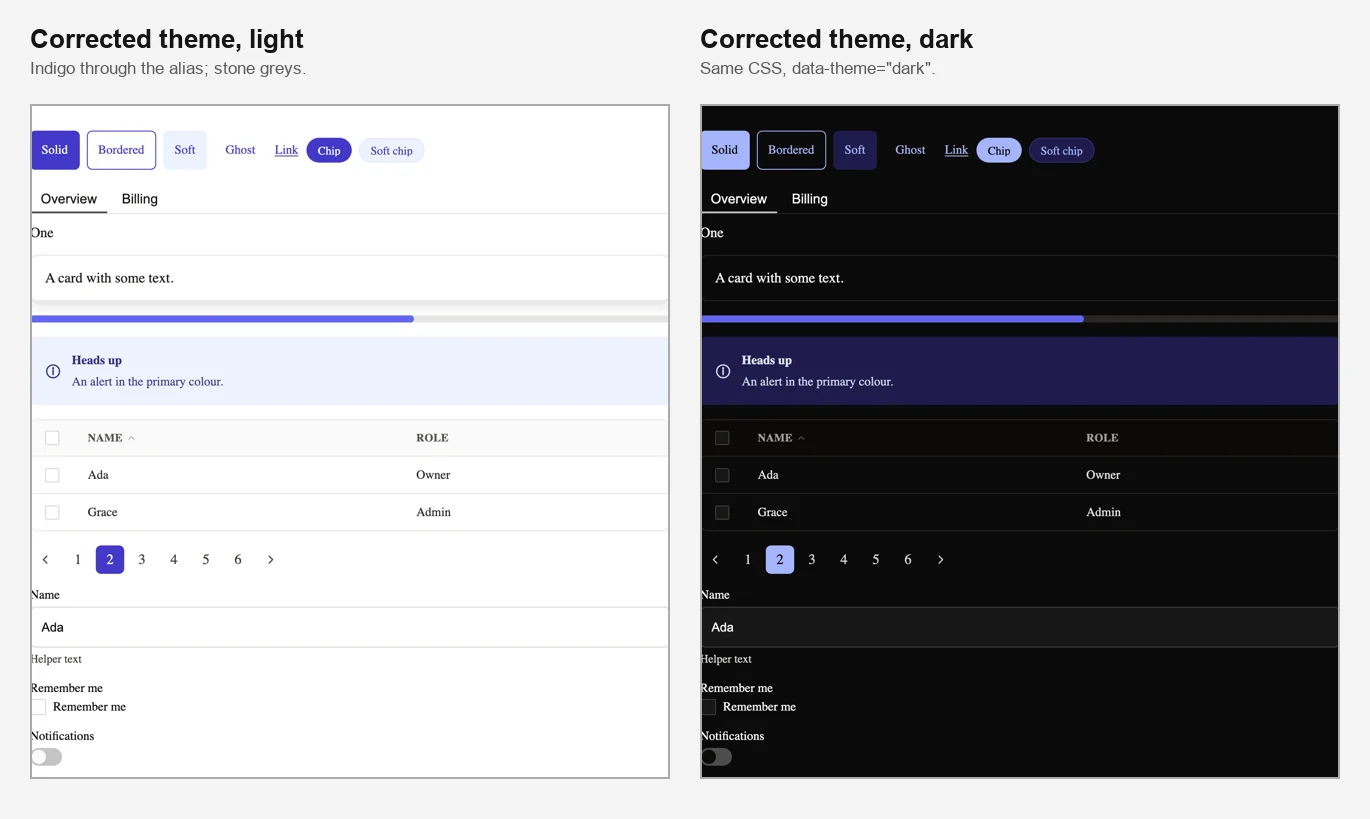
The corrected theme (indigo alias, stone greys) on the same page in light and dark.
That is the whole system: no provider, no rebuild, no JavaScript theme object. See the full token reference at Theming and dark-mode specifics at Dark mode. Whether it takes ten minutes depends on your brand: choosing a built-in palette took me a few lines, and a custom ramp is mostly the time to pick eleven good colours.
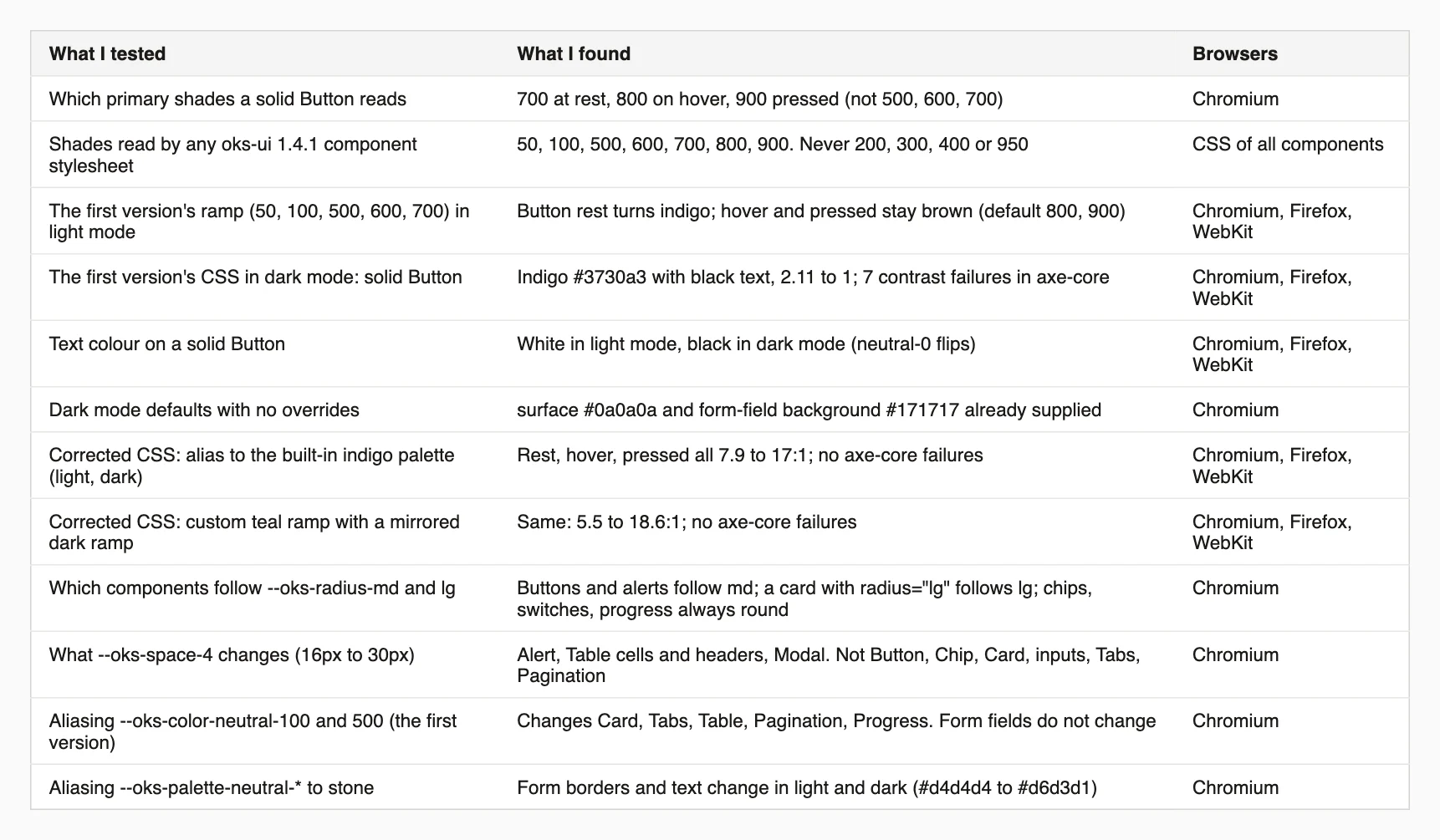
What I measured. The shade, radius, space and neutral probes ran in Chromium; the solid button states and the axe-core checks ran in all three browsers.
This script paints every shade of a colour role a different colour, then reports which shades the element you point it at uses at rest, on hover and while pressed. Use it before you decide which shades to override. Install playwright first.
// npm i -D playwright
// node which-shades.mjs http://localhost:3000/buttons "button.primary" primary
import { chromium } from "playwright";

const [url, selector, role = "primary"] = process.argv.slice(2);
const shades = [50, 100, 200, 300, 400, 500, 600, 700, 800, 900, 950];
const colours = Object.fromEntries(shades.map((s, i) => [s, `rgb(${20 + i * 20}, ${200 - i * 15}, ${40 + ((i * 70) % 200)})`])); // all different
const css = `:root { ${shades.map((s) => `--oks-color-${role}-${s}: ${colours[s]};`).join(" ")} }`;
const byColour = Object.fromEntries(shades.map((s) => [colours[s], s]));

const browser = await chromium.launch();
const page = await browser.newPage();
await page.goto(url);
await page.addStyleTag({ content: css });
await page.waitForTimeout(400);

const read = () => page.evaluate(([sel, byColour]) => {
  const root = document.querySelector(sel);
  const used = new Set();
  for (const el of [root, ...root.querySelectorAll("*")]) {
    const s = getComputedStyle(el);
    for (const prop of ["color", "backgroundColor", "borderTopColor", "outlineColor"]) if (byColour[s[prop]]) used.add(byColour[s[prop]]);
  }
  return [...used].sort((a, b) => a - b).join(", ") || "none";
}, [selector, byColour]);

const element = page.locator(selector).first();
console.log("at rest:     ", await read());
const box = await element.boundingBox();
await page.mouse.move(box.x + box.width / 2, box.y + box.height / 2);
await page.waitForTimeout(300);
console.log("on hover:    ", await read());
await page.mouse.down();
await page.waitForTimeout(300);
console.log("while pressed:", await read());
await page.mouse.up();
await browser.close();
On a solid primary button it printed at rest: 700, on hover: 800 and while pressed: 900.
I'm a front-end engineer based in Hyderabad, India, with more than 17 years of professional experience. I spent 12 years as a senior front-end developer, designing and building websites, and I have worked as a full-stack developer since 2022. I created oks-ui, a React component library with no runtime dependencies, and I write and maintain this site.