 oks-ui
Omkar Sahu · 9 min read
Published · Updated · Last reviewed · by Omkar Sahu

An admin dashboard is mostly three things: a row of numbers that matter, a chart that shows the trend, and a table of recent activity. In this tutorial I build all three with oks-ui and arrange them so they work from a phone to a desktop.
The first version of this post listed one stylesheet per component and nothing else. Copied as written, the dashboard renders, but the status chips in the table are solid blue pills with no visible text, and the chart falls back to grey series colours. The component stylesheets read their colours from the design tokens, and the tokens live in their own file. Add one line:
import "oks-ui/tokens.css"; // the design tokens every component stylesheet reads

import { Card } from "oks-ui/card";
import "oks-ui/card.css";
import { Stat } from "oks-ui/stat";
import "oks-ui/stat.css";
import { Chart } from "oks-ui/chart";
import "oks-ui/chart.css";
import { Table, type TableColumn } from "oks-ui/table";
import "oks-ui/table.css";
import { Chip } from "oks-ui/chip";
import "oks-ui/chip.css";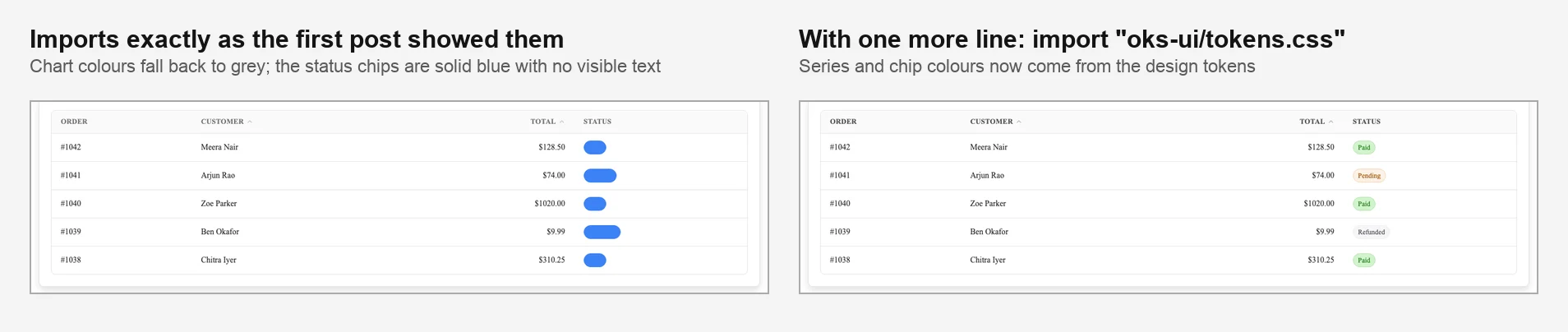
The same table. Left: the imports exactly as the first version showed them. Right: with `oks-ui/tokens.css` added.
If you would rather import everything in one line, oks-ui/styles.css includes the tokens, but it also pulls in every component's stylesheet. In my build that took the CSS from 41 KB to 84 KB gzipped, so I use tokens.css plus the stylesheets for the components I use.
The hardest part of a dashboard is not the code, it is choosing what to show. A useful test: every number on the first screen should answer a question someone really asks every day. "How much did we sell this week?" earns a card. "Total registered users since launch" usually does not, because it only ever goes up and nobody acts on it.
Keep the top row to four numbers. Show each one next to its change over a comparable period, because a number without context cannot tell you whether today is good or bad. Put detail, the chart and the table, underneath, where people look once the top row has told them something is worth a closer look.
Stat shows a label, a big value and an optional change with a direction. The direction colours the change pill and picks the arrow.
const kpis = [
  { label: "Revenue", value: "$48,210", delta: "+12.4%", trend: "up" },
  { label: "Orders", value: "1,284", delta: "+3.1%", trend: "up" },
  { label: "Refunds", value: "18", delta: "-2", trend: "down" },
  { label: "Conversion", value: "3.2%", delta: "0.0%", trend: "flat" },
] as const;

<div className="kpi-grid">
  {kpis.map((k) => (
    <Card key={k.label} shadow="sm" radius="lg" style={{ padding: 20 }}>
      <Stat label={k.label} value={k.value} delta={k.delta} trend={k.trend} />
    </Card>
  ))}
</div>
Stat also takes an icon, a help line under the value and a spark slot for a small chart. I checked these too: a Stat with all three compiles, and the icon, the help text and a sparkline chart all render.
Chart takes rows of data, the key for the x axis and the series to draw. Two series get a legend automatically.
const revenue = [
  { month: "Jan", online: 12400, store: 8200 },
  { month: "Feb", online: 13900, store: 7900 },
  { month: "Mar", online: 15100, store: 8800 },
  { month: "Apr", online: 16800, store: 9100 },
  { month: "May", online: 18200, store: 9600 },
  { month: "Jun", online: 21000, store: 10400 },
];

<Card shadow="sm" radius="lg" style={{ padding: 20 }}>
  <Chart
    type="area"
    title="Revenue"
    description="Online vs. in-store, last 6 months"
    data={revenue}
    x="month"
    series={[
      { key: "online", name: "Online" },
      { key: "store", name: "In store" },
    ]}
    height={280}
  />
</Card>
Changing type to "line" or "column" is the only edit needed: both rendered correctly in all three browsers. Hovering shows a tooltip with the month and both values. With the keyboard, the chart is one tab stop labelled "Revenue data. Use arrow keys to browse, Enter to select", and each arrow press shows and announces the next month, for example "Mar, Online: 15,100, In store: 8,800".
The narrow column gets a smaller card. A donut works well for a share of a whole:
<Card shadow="sm" radius="lg" style={{ padding: 20 }}>
  <Chart
    type="donut"
    title="Sales by channel"
    data={[{ channel: "Online", sales: 96400 }, { channel: "In store", sales: 54000 }]}
    x="channel"
    series="sales"
    height={240}
  />
</Card>
It has a gap in dark mode, described under "Gaps I found" below.
Table takes column definitions and rows. A column's render function controls how a cell looks, here a status Chip.
type Order = { id: string; customer: string; total: number; status: "Paid" | "Pending" | "Refunded" };

const STATUS_COLOR = { Paid: "success", Pending: "warning", Refunded: "default" } as const;

const columns: TableColumn<Order>[] = [
  { key: "id", header: "Order" },
  { key: "customer", header: "Customer", sortable: true },
  {
    key: "total",
    header: "Total",
    align: "end",
    sortable: true,
    render: (o) => `$${o.total.toFixed(2)}`,
  },
  {
    key: "status",
    header: "Status",
    render: (o) => (
      <Chip size="sm" variant="soft" color={STATUS_COLOR[o.status]}>{o.status}</Chip>
    ),
  },
];

<Card shadow="sm" radius="lg" style={{ padding: 20 }}>
  <Table aria-label="Recent orders" columns={columns} rows={orders} getRowKey={(o) => o.id} />
</Card>
Sortable columns sort when you click the header label, with no extra code. The first click sorts ascending, the second reverses, and the third goes back to ascending, so there is no way to return to the original order without reloading. Totals sort as numbers: 9.99 comes before 74, not after 1020. Pressing Enter on a focused header button sorts too.
One thing to know: only the label itself is the button. In my test the header cell was 378 pixels wide and the button 90, and clicking the empty part of the cell did nothing, in all three browsers.
A few lines of CSS grid make it responsive: four KPI cards in a row on desktop, two on phones.
.dashboard { display: grid; gap: 16px; }
.kpi-grid { display: grid; gap: 16px; grid-template-columns: repeat(4, minmax(0, 1fr)); }
.dashboard-main { display: grid; gap: 16px; grid-template-columns: 2fr 1fr; }

@media (max-width: 900px) {
  .kpi-grid { grid-template-columns: repeat(2, minmax(0, 1fr)); }
  .dashboard-main { grid-template-columns: 1fr; }
}
The first version never said where the table goes. My first attempt put it in the narrow column, and at 1280 pixels the Status column was cut off. Give the table its own full-width row under .dashboard-main, with the revenue chart in the wide column and the donut in the narrow one. I measured the grid at three widths: four cards across at 1280, two at 800 and two at 375, with no horizontal scroll on the page at any of them.
On a 375-pixel phone the orders table is still wider than its card (389 pixels of table in 299 of space), so the card scrolls sideways and the Status column sits out of view until you swipe. That is acceptable for a table with four columns, but you should know it happens.
Dashboards load data, and blank cards while waiting look broken. Table and Chart both take isLoading:
<Table aria-label="Recent orders" columns={columns} rows={orders ?? []} getRowKey={(o) => o.id} isLoading={!orders} />
<Chart type="area" data={revenue ?? []} x="month" series="online" isLoading={!revenue} />
With isLoading set, both showed their loading state in all three browsers.
Every component here uses oks-ui's design tokens, so setting data-theme="dark" on the html element switches the whole dashboard: cards, chart, table and chips changed in all three browsers. It did not switch everything cleanly, as the next section shows.
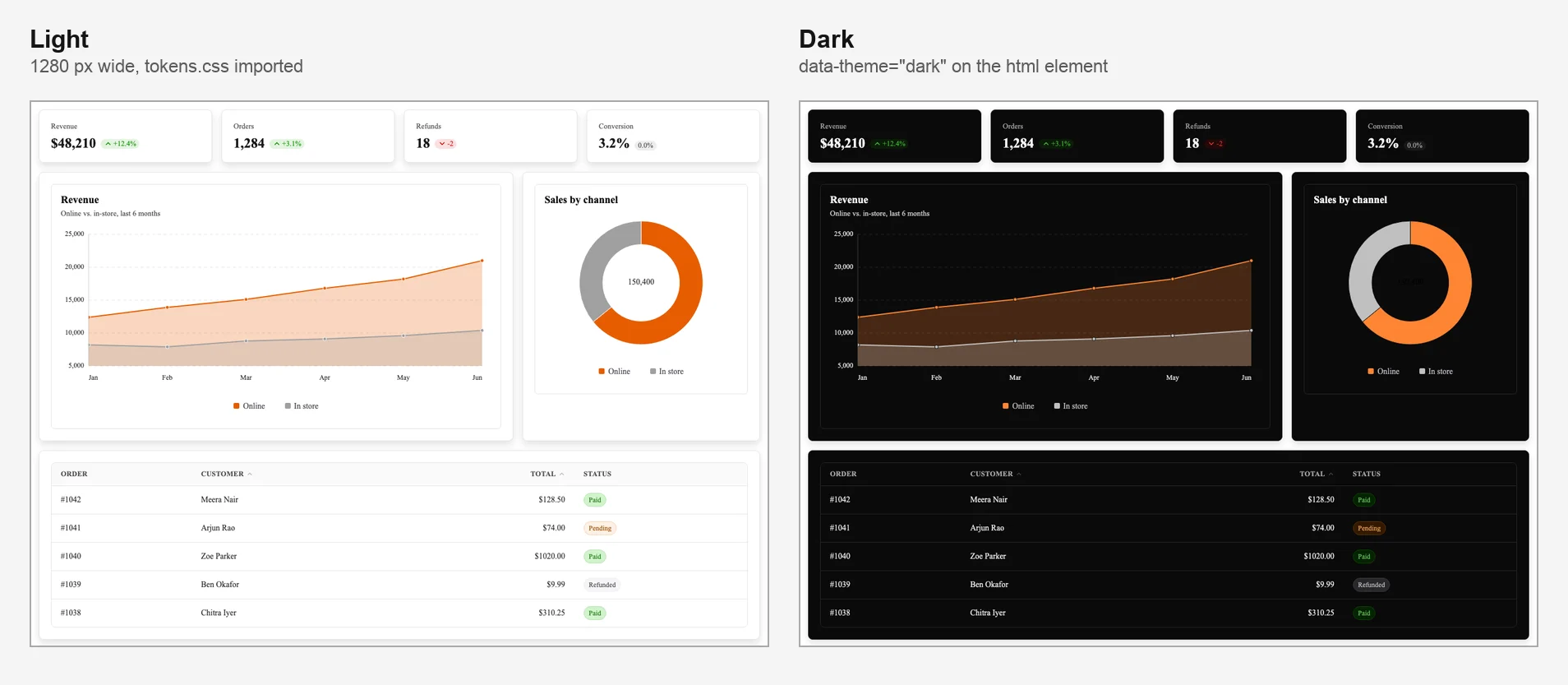
The finished dashboard in light and dark.
I ran axe-core, the accessibility checker, on the dashboard in both themes. These are gaps in oks-ui 1.4.1 itself, not mistakes in the tutorial code.
rgb(0, 0, 0) on rgb(10, 10, 10) in all three browsers, and you can see it is unreadable in the screenshot above. A workaround is to set the text colour yourself with a CSS rule on the chart's SVG text in dark mode; I have not tested one, so I am not giving you an untested rule.I have noted these for the library. Nothing here is released or fixed yet.
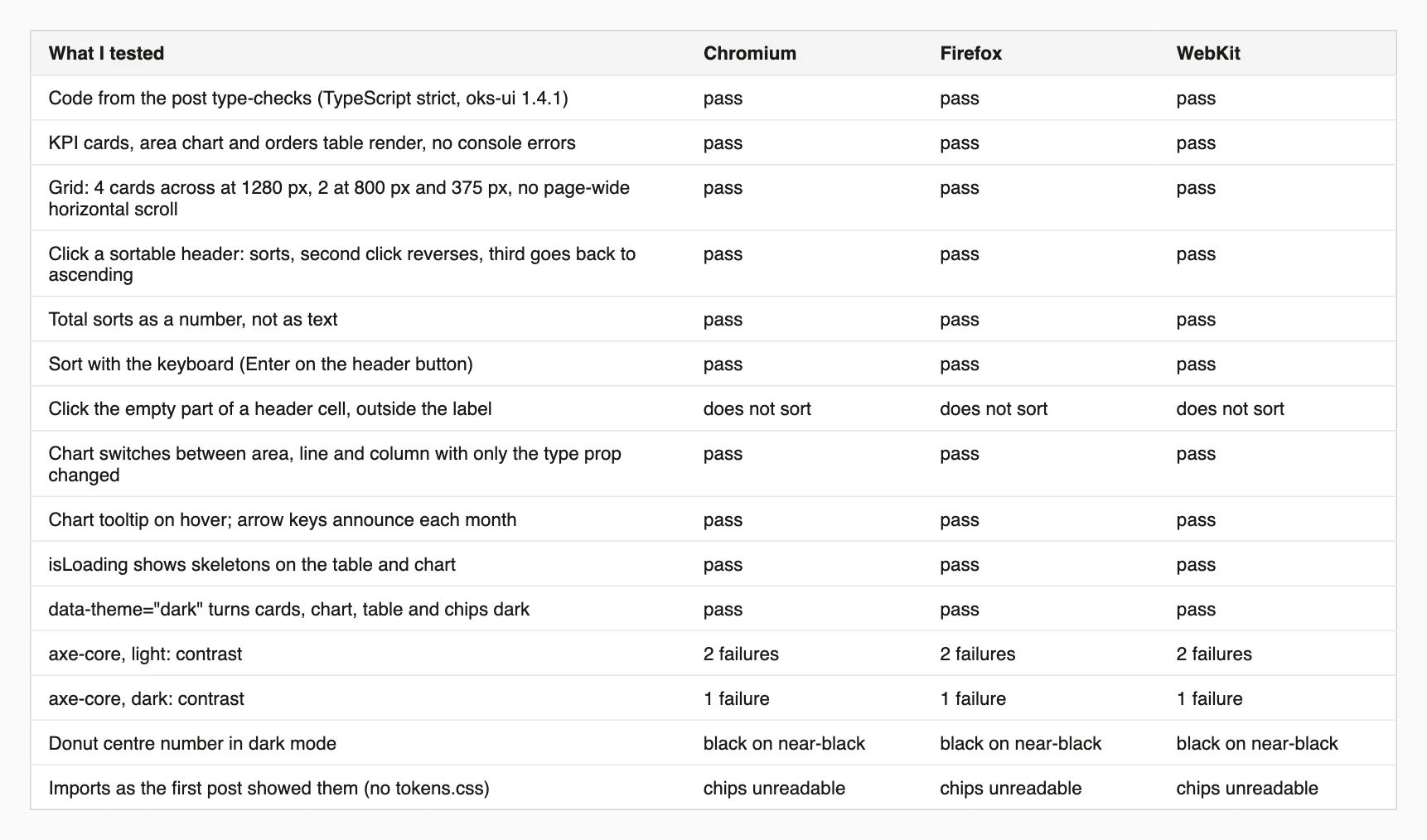
Every result, in all three browsers.
On size: the whole page, React included, came to 146 KB of JavaScript and 41 KB of CSS gzipped. React and ReactDOM alone are 69 KB of that JavaScript, so the five oks-ui components, including the charts, add about 77 KB.
This script runs axe-core against a page in both themes. Install playwright and axe-core first.
// npm i -D playwright axe-core
// node axe-both-themes.mjs http://localhost:3000/dashboard
import { chromium } from "playwright";
import { readFileSync } from "node:fs";
import { createRequire } from "node:module";

const url = process.argv[2];
const axeSource = readFileSync(createRequire(import.meta.url).resolve("axe-core/axe.min.js"), "utf8");

const browser = await chromium.launch();
const page = await browser.newPage();
await page.goto(url);
await page.waitForTimeout(1000); // let entrance animations finish before measuring contrast
for (const theme of ["light", "dark"]) {
  await page.evaluate((t) => document.documentElement.setAttribute("data-theme", t), theme);
  await page.waitForTimeout(500);
  await page.evaluate(axeSource);
  const violations = await page.evaluate(async () => (await axe.run()).violations.map((v) => `${v.id} (${v.nodes.length}): ${v.help}`));
  console.log(`${theme}: ${violations.length ? violations.join("\n  ") : "no violations"}`);
}
await browser.close();
On my dashboard it reported the contrast failures above in both themes, plus "page should contain a level-one heading", which is only because my test page has no h1; a real page will have one. The pauses matter: without them axe measured colours in the middle of the chart's entrance animation and reported ten dark-mode failures instead of one.
See a complete version on the patterns page.
Table.I'm a front-end engineer based in Hyderabad, India, with more than 17 years of professional experience. I spent 12 years as a senior front-end developer, designing and building websites, and I have worked as a full-stack developer since 2022. I created oks-ui, a React component library with no runtime dependencies, and I write and maintain this site.