 oks-ui
Omkar Sahu · 9 min read
Published · Updated · Last reviewed · by Omkar Sahu
onValidate all worked as described. Two things in the first version were wrong: the default header does not show numbers, and the custom renderHeader example showed nothing. I also found three gaps in oks-ui, listed below, and a table of results near the end.Long forms convert better when they are split into short steps: account first, then profile, then preferences. The tricky parts are validating only the current step, keeping everything the user typed when they go back, and showing where they are. oks-ui's SteppedForm handles all three.
import "oks-ui/tokens.css"; // the design tokens every component stylesheet reads
import { SteppedForm } from "oks-ui/stepped-form";
import "oks-ui/stepped-form.css";
import { FormFieldSet } from "oks-ui/form-field-set";
import "oks-ui/form-field-set.css";
The first line loads the design tokens that every component stylesheet reads. Without it the components still render, but with fallback colours: in my test a danger button came out the same blue as a primary one.
Each step has a key, a title, its content, and a fields list: the names of the fields that must be valid before the user can press Next.
export const SignupWizard = () => {
  return (
    <SteppedForm
      onSubmit={(data) => createAccount(data)}
      steps={[
        {
          key: "account",
          title: "Account",
          fields: ["email", "password"],
          content: (
            <>
              <FormFieldSet type="email" name="email" label="Email"
                validation={{ rules: { required: true, email: true } }} />
              <FormFieldSet type="password" name="password" label="Password"
                validation={{ rules: { required: true, minLength: 8 } }} />
            </>
          ),
        },
        {
          key: "profile",
          title: "Profile",
          fields: ["fullName", "company"],
          content: (
            <>
              <FormFieldSet type="text" name="fullName" label="Full name"
                validation={{ rules: { required: true } }} />
              <FormFieldSet type="text" name="company" label="Company" />
            </>
          ),
        },
        {
          key: "preferences",
          title: "Preferences",
          isOptional: true,
          content: (
            <FormFieldSet type="switch" name="newsletter" label="Send me product updates" />
          ),
        },
      ]}
    />
  );
};
This type-checks as written. Here is what I saw when I ran it:
onSubmit had email, password, fullName and company in one go.onError, which Form provides, and move the user to the first step with an error yourself.The optional step has one catch. When I submitted without touching the switch, the data sent had no newsletter key at all, so treat a missing key as "off" in your code.
headerVariant sets how progress is shown:
"dots" (default): a button for each step with a dot and its title. The first version called these numbered; they are not. There are no numbers."progress": a thin progress bar and the title of the current step only."tabs": the same step buttons as dots, packed to their own width. They are not real ARIA tabs."none": no header, when you draw your own.<SteppedForm headerVariant="progress" steps={steps} onSubmit={submit} />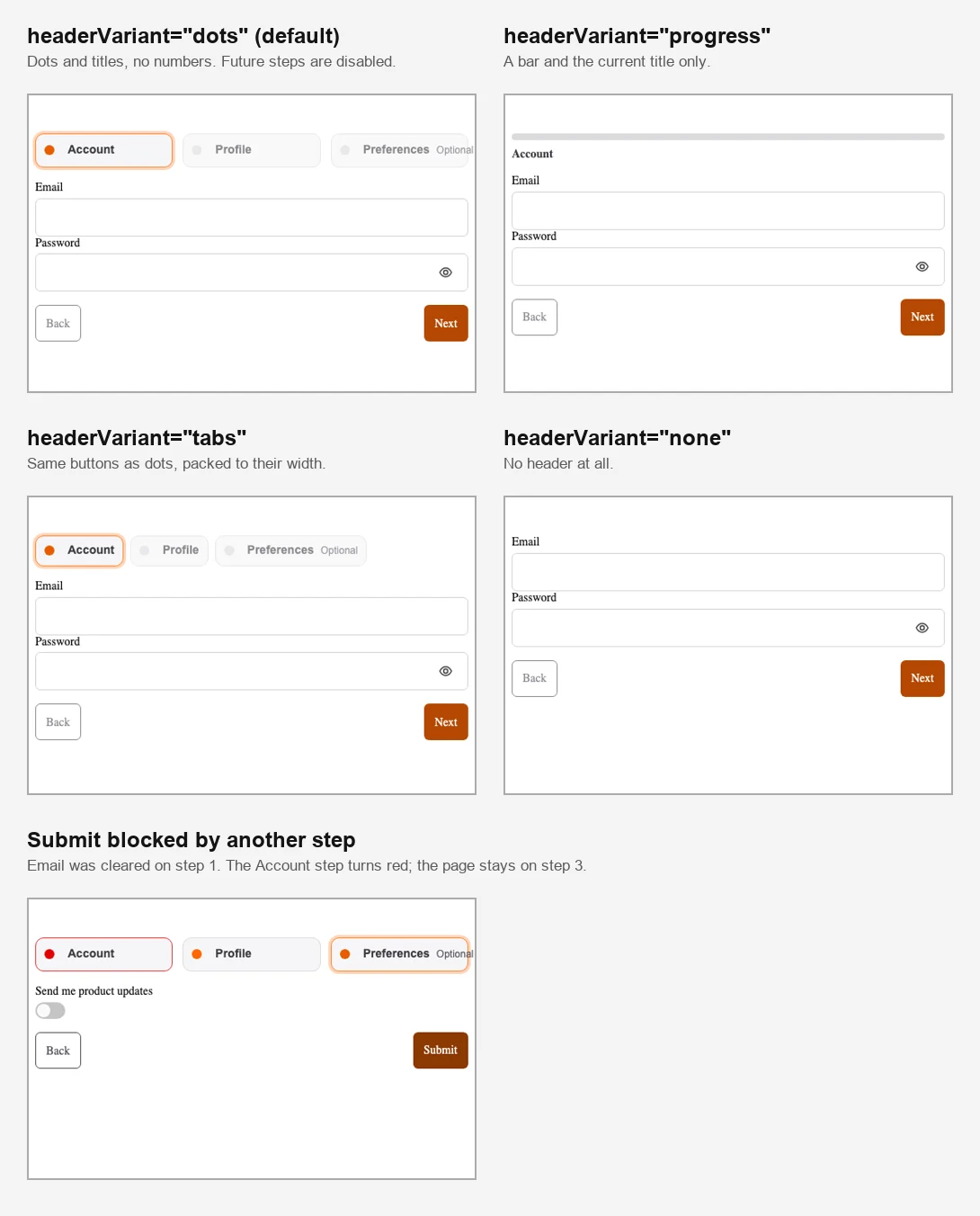
The four header variants, and the red Account step after a blocked Submit from step 3.
By default users can click the header to jump back to earlier steps. I checked the header buttons: earlier and current steps were enabled, later steps were disabled, and the Preferences step with its "Optional" label followed the same rule. disableHeaderNavigation turns the clicks off for strictly linear flows, and the Account button was disabled once I set it.
The progress bar does move (its internal value went from 0 to 0.5 after step 1), but it is a plain element with no role="progressbar" and no value for assistive technology. A screen reader user hears only the current step's title. If you use "progress", add your own text such as "Step 2 of 3".
Some checks cannot be expressed as field rules, such as "is this email already registered?". A step's onValidate runs after its fields pass. Return true to continue, or a string to stop with that message:
{
  key: "account",
  title: "Account",
  fields: ["email", "password"],
  content: /* …fields… */,
  onValidate: async (data) => {
    const taken = await isEmailTaken(String(data.email));
    return taken ? "That email already has an account" : true;
  },
}
I tested this with a fake isEmailTaken that waits 700 ms. Using a taken address, the message appeared, the user stayed on step 1, and the message had role="alert". While the check was running Back was disabled and Next was disabled and marked busy, and pressing Next again did not start a second check: my counter showed one call. With a free address the wizard moved on. onValidate only runs on Next: after submitting, the counter was unchanged, so do final server checks in onSubmit.
<SteppedForm backLabel="Previous" nextLabel="Continue" submitLabel="Create account" steps={steps} onSubmit={submit} />All three labels changed, and the last step's button read "Create account".
To keep the current step in the URL, or move between steps from outside the form, control it with stepIndex and onStepChange:
const [step, setStep] = useState(0);

<SteppedForm stepIndex={step} onStepChange={setStep} steps={steps} onSubmit={submit} />
onStepChange was not called when validation blocked a Next, and was called with 1 after a valid one, so it is safe to write the new step into the address from it.
For a fully custom look, renderHeader receives the steps and the active index. The first version also set headerVariant="none" here, which is wrong: with that set, renderHeader is never called and nothing is drawn. I tried it in all three browsers. Leave headerVariant out and renderHeader replaces the header on its own:
<SteppedForm
  renderHeader={({ steps, activeStepIndex }) => (
    <p>Step {activeStepIndex + 1} of {steps.length}: {steps[activeStepIndex].title}</p>
  )}
  steps={steps}
  onSubmit={submit}
/>
This printed "Step 1 of 3: Account" and then "Step 2 of 3: Profile" after the first Next. A custom header like this also fixes the progress-bar gap above, because it is real text.
These are in oks-ui 1.4.1 itself, not in the tutorial code. I have noted them for the library; nothing is released or fixed yet.
isOptional.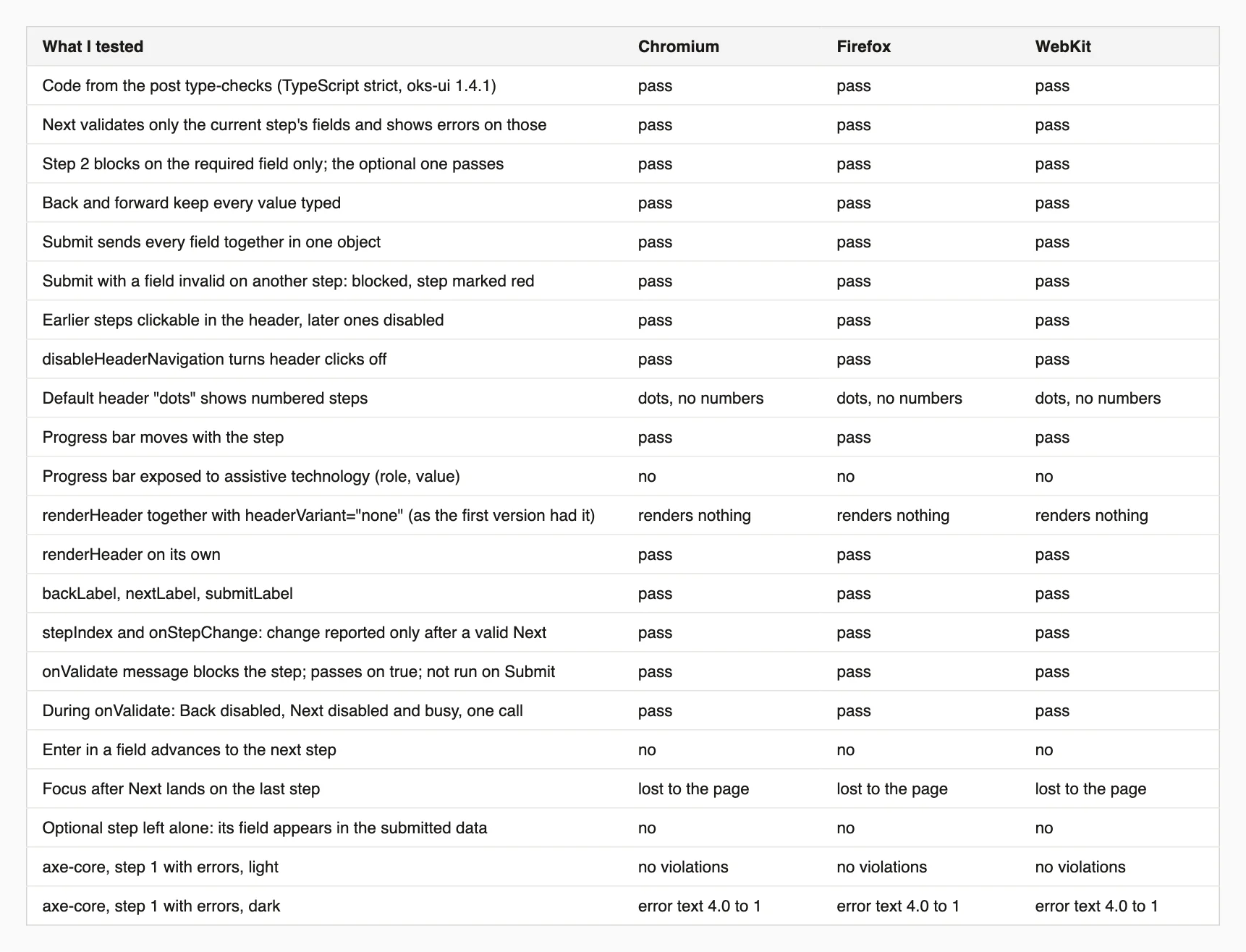
Every result, in all three browsers.
On size: the whole page, React included, came to 112 KB of JavaScript and 34 KB of CSS gzipped.
This script goes through your wizard with the keyboard, filling the fields you give it, and prints where focus is after each step change. It stops before the final Submit. Install playwright first.
// npm i -D playwright
// node wizard-focus-check.mjs http://localhost:3000/signup "input[name=email]=a@b.co" "input[name=password]=correct-horse" "input[name=fullName]=Meera"
// each fill is a CSS selector ending in ], then =, then the value
import { chromium, firefox, webkit } from "playwright";

const [url, ...fills] = process.argv.slice(2);
const forward = /^(next|continue|submit)/i;

for (const [name, type] of [["Chromium", chromium], ["Firefox", firefox], ["WebKit", webkit]]) {
  const browser = await type.launch();
  const context = await browser.newContext({ viewport: { width: 700, height: 700 } });
  const page = await context.newPage();
  await page.goto(url);
  const log = [];
  for (let step = 1; step <= 8; step++) {
    for (const fill of fills) {
      const [, selector, value] = fill.match(/^(.*\])=(.*)$/s); // "css selector]=value"
      const field = page.locator(selector).first();
      if (await field.isVisible().catch(() => false)) await field.fill(value);
    }
    const button = page.getByRole("button", { name: forward }).first();
    const label = (await button.textContent())?.trim();
    if (/submit/i.test(label ?? "")) break; // stop before the final submit
    await button.focus(); // Safari does not focus buttons on click, so use the keyboard like a keyboard user
    await page.keyboard.press("Enter");
    await page.waitForTimeout(400);
    const active = await page.evaluate(() => {
      const el = document.activeElement;
      return el === document.body ? "the page body (focus lost)" : `${el.tagName.toLowerCase()} "${(el.textContent || el.getAttribute("name") || "").trim().slice(0, 20)}"`;
    });
    log.push(`after "${label}": focus is on ${active}`);
  }
  console.log(`${name}:\n  ${log.join("\n  ")}`);
  await browser.close();
}
On my wizard it printed focus is on button "Next" after the first Next and focus is on the page body (focus lost) after the second, in all three browsers.
See a complete example on the onboarding wizard pattern.
onValidate were not tested.I'm a front-end engineer based in Hyderabad, India, with more than 17 years of professional experience. I spent 12 years as a senior front-end developer, designing and building websites, and I have worked as a full-stack developer since 2022. I created oks-ui, a React component library with no runtime dependencies, and I write and maintain this site.