 oks-ui
Omkar Sahu · 9 min read
Published · Updated · Last reviewed · by Omkar Sahu

Almost every app starts with a login form, and most login forms get the same details wrong: errors that appear too early, password managers that cannot fill the fields, and a submit button you can press twice. In this tutorial I build one that gets them right, using oks-ui's Form, FormFieldSet and Button.
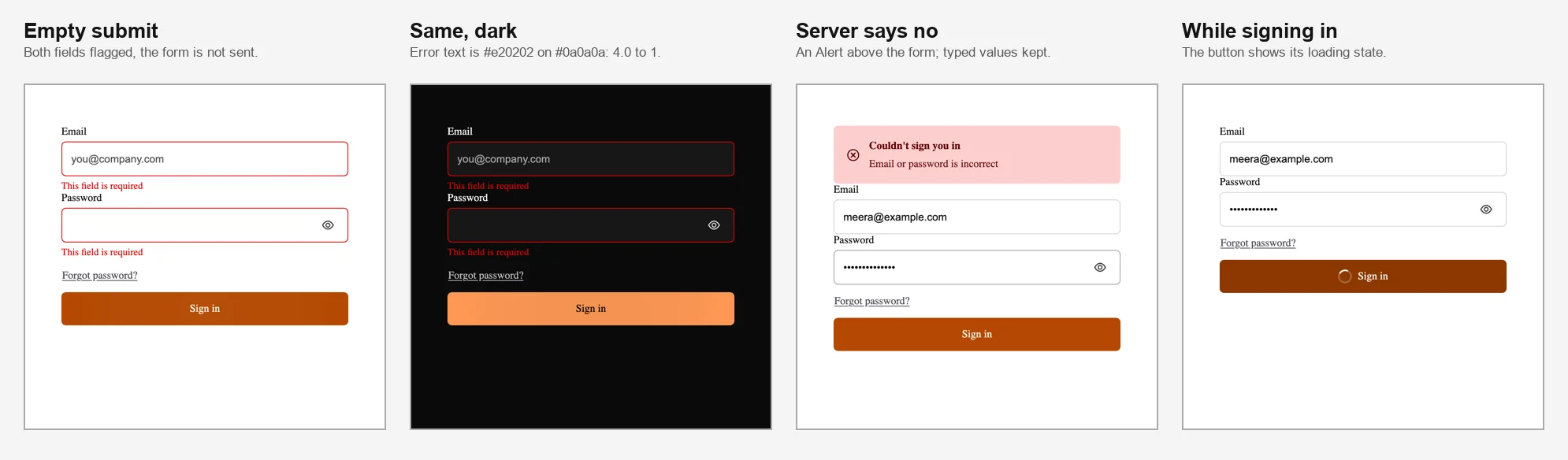
The finished form in four states.
npm install oks-uiImport each component from its own entry point, together with its stylesheet:
import "oks-ui/tokens.css"; // the design tokens every component stylesheet reads
import { Form, FormFieldSet } from "oks-ui/form-field-set";
import "oks-ui/form-field-set.css";
import { Button } from "oks-ui/button";
import "oks-ui/button.css";
The first line loads the design tokens that every component stylesheet reads. Without it the components still render, but with fallback colours: in my test a danger button came out the same blue as a primary one.
Form holds the values, runs validation and calls onSubmit only when every field is valid. Each FormFieldSet registers itself with the nearest Form by its name.
export const LoginForm = () => {
  async function handleLogin(data: Record<string, unknown>) {
    await signIn(String(data.email), String(data.password));
  }

  return (
    <Form onSubmit={handleLogin} disableAutofill={false} autoComplete="on">
      <FormFieldSet
        type="email"
        name="email"
        label="Email"
        placeholder="you@company.com"
        autoComplete="email"
        validation={{ rules: { required: true, email: true } }}
      />
      <FormFieldSet
        type="password"
        name="password"
        label="Password"
        autoComplete="current-password"
        validation={{
          rules: { required: true, minLength: 8 },
          message: { minLength: "Use at least 8 characters" },
        }}
      />
      <Button type="submit" color="primary" fullWidth>
        Sign in
      </Button>
    </Form>
  );
};
This type-checks as written. I tested it with a fake signIn. Submitting an empty form did not call onSubmit and showed "This field is required" under both fields. A bad email and a short password were not sent either, and showed "Please enter a valid email address" and the custom "Use at least 8 characters". A valid pair called onSubmit once with the email and password as strings. That was the same in all three browsers.
By default, oks-ui's Form disables browser autofill. That is the right default for most forms: nobody wants a saved address appearing in a "company name" field. A login form is the exception.
I looked at what the default does. The <form> gets autocomplete="off", and Form adds two hidden decoy inputs named __oks_autofill_username and __oks_autofill_password, so the browser spends its autofill on those instead of your fields.
Two props turn this off: disableAutofill={false} and autoComplete="on" on the Form. With them, the decoys were gone and the form had autocomplete="on". Then give each field the standard autocomplete token: email for the email and current-password for the password. Those were on the inputs. A sign-up form would use new-password instead, which tells password managers to suggest a strong new password.
One honest limit: I checked the attributes, not a real password manager. Whether a particular manager fills the form is up to that manager.
Errors that appear while someone is still typing their email feel like being told off. Form shows an error after the user leaves a field, not while they are typing. I tested it: with an invalid email typed, no error was shown, and it appeared the moment I tabbed away.
The first version then said the error "updates as they fix it". With the default settings it does not. After the error appeared I went back and fixed the address, and the error stayed on screen until I left the field again. If you want the error to clear as soon as the value becomes valid, set both of these on the Form:
<Form onSubmit={handleLogin} validationMode="change" showErrorsOn="blur" disableAutofill={false} autoComplete="on">validationMode="change" checks the value on every keystroke, and showErrorsOn="blur" still holds the first error back until the field is left. With those two set, the error disappeared while I typed the fix, in all three browsers. For comparison, showErrorsOn="change" shows the error while you are still typing, which is the behaviour this tutorial avoids.
Every rule has a default message. Override any of them with message, as the password field does above.
Form awaits your onSubmit. While the promise is pending, show a loading state so the user knows something is happening and cannot send the form again. With the button's isLoading prop:
const [pending, setPending] = useState(false);

async function handleLogin(data: Record<string, unknown>) {
  setPending(true);
  try {
    await signIn(String(data.email), String(data.password));
  } finally {
    setPending(false);
  }
}

// …
<Button type="submit" color="primary" fullWidth isLoading={pending}>
  Sign in
</Button>
This does what it says, and it covers the keyboard too, where it matters most. I pressed Enter three times quickly in the password field and counted the requests the page sent. With isLoading, one request went out. Without it, three. The button gets aria-busy while loading. That held in all three browsers.
A wrong password is not a validation error, because the server decides it. Show it above the form with an Alert:
import { Alert } from "oks-ui/alert";
import "oks-ui/alert.css";

{error && (
  <Alert color="danger" variant="soft" title="Couldn't sign you in" description={error} />
)}
The alert has role="alert", so a screen reader announces it when it appears. After a failed attempt the email and password stayed in their fields, and the alert was removed as soon as I submitted again. The alert sits directly on top of the first label with no gap, so add some margin above the form.
Keep the message general, such as "Email or password is incorrect". Saying which of the two was wrong tells an attacker which emails have accounts.
Each FormFieldSet connects its label to its input. After a failed submit, both inputs had aria-invalid="true" and aria-describedby pointing at the error message, which has role="alert". The password toggle is a real <button type="button"> named "Show password", and pressing Enter on it switched the field from password to text. The tab order was email, password, the show/hide button, "Forgot password?", then "Sign in".
axe-core found no problems in light mode, even with the error messages showing. Two things need your attention:
onError, which Form calls with the errors. I did not test that.Button with variant="link" and type="button" under the password field. In my test, clicking it did not submit the form or show any errors.matchField rule: validation={{ rules: { required: true, matchField: "password" } }}. A mismatch showed "Fields do not match" and a match showed nothing.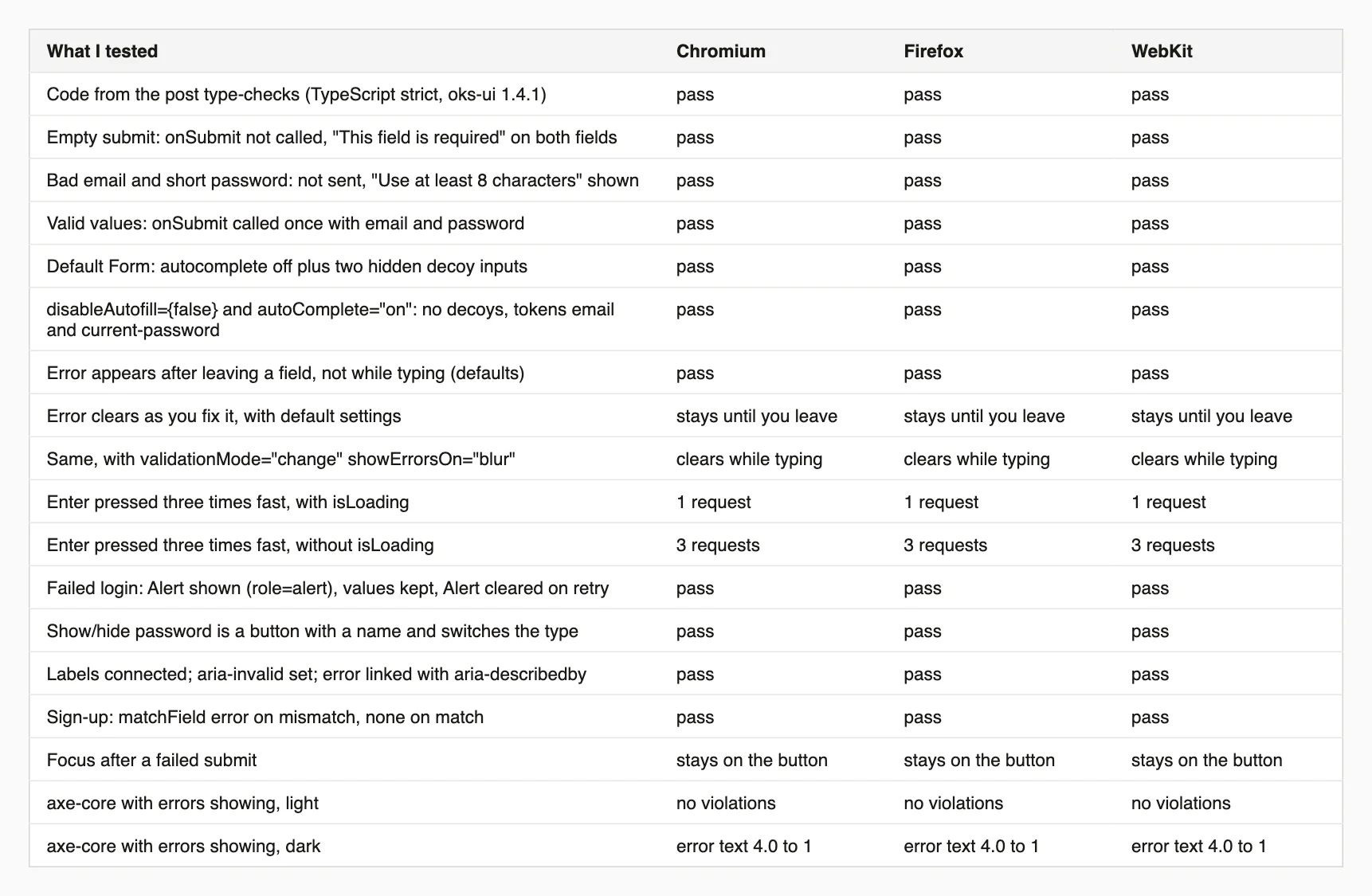
Every result, in all three browsers.
On size: the whole page, React included, came to 111 KB of JavaScript and 23 KB of CSS gzipped.
This script fills your login form, presses Enter three times quickly and counts the requests sent to your login endpoint. Install playwright first.
// npm i -D playwright
// node double-submit-check.mjs http://localhost:3000/login "input[name=email]" "input[name=password]" /api/login
import { chromium, firefox, webkit } from "playwright";

const [url, emailSel, passwordSel, apiPath] = process.argv.slice(2);

for (const [name, type] of [["Chromium", chromium], ["Firefox", firefox], ["WebKit", webkit]]) {
  const browser = await type.launch();
  const context = await browser.newContext();
  const page = await context.newPage();
  let posts = 0;
  page.on("request", (request) => {
    if (request.method() === "POST" && request.url().includes(apiPath)) posts++;
  });
  await page.goto(url);
  await page.fill(emailSel, "someone@example.com");
  await page.fill(passwordSel, "a-long-enough-password");
  // Press Enter three times in quick succession, as an impatient person would.
  await page.click(passwordSel);
  for (let i = 0; i < 3; i++) await page.keyboard.press("Enter");
  await page.waitForTimeout(1500);
  console.log(`${name}: ${posts} request(s) sent${posts > 1 ? "  <- double submit" : ""}`);
  await browser.close();
}
On my form it printed "1 request(s) sent" for each browser with isLoading and "3 request(s) sent <- double submit" without it.
onError focus move is a suggestion I have not tried.I'm a front-end engineer based in Hyderabad, India, with more than 17 years of professional experience. I spent 12 years as a senior front-end developer, designing and building websites, and I have worked as a full-stack developer since 2022. I created oks-ui, a React component library with no runtime dependencies, and I write and maintain this site.